FILE G1 / PRIVACY GUIDE
How to Password Protect Photos on Your iPhone: 3 Methods That Actually Work
Your iPhone's Photos app has a Hidden Album, but it is not locked by default. There are three real ways to password protect photos on iPhone, each with different trade-offs. This guide compares them so you can choose the one that fits your threat model.
UPDATED · 2026-05-16 · REVIEWED BY APP-VAULT
TL;DR
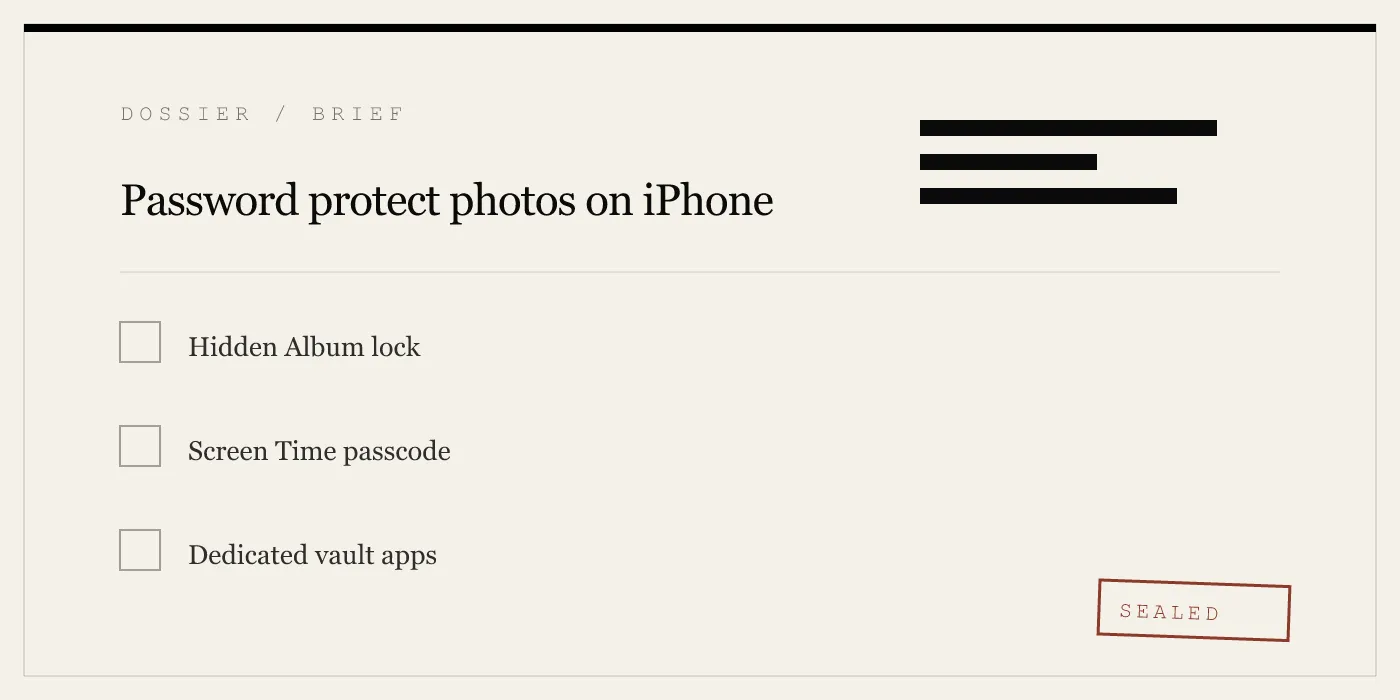
The Hidden Album can be locked with Face ID or Touch ID, but it is not password-protected against someone who knows your device passcode. Screen Time lets you set a separate passcode for the Photos app, but it is awkward and can be bypassed. Dedicated vault apps like App-Vault provide a true pattern lock with AES-256 encryption, no account required, and a decoy vault for shared devices.
Many users search for how to bloquear fotos no iphone — the answer depends on what level of protection you need. Apple provides a Hidden Album that can be locked with Face ID, but it has no independent password. Screen Time offers a separate passcode for the entire Photos app, but it blocks more than photos. Third-party vault apps like App-Vault bring a dedicated lock screen with strong encryption. This article covers all three methods, their limits, and the situations where each makes sense.
The Hidden Album: Convenient but Not Truly Password-Protected
iOS 16 introduced the ability to lock the Hidden Album with Face ID or Touch ID. When enabled, the album disappears from the main Photos list and requires biometric authentication to view. You can turn it on in Settings > Photos > Use Face ID.
This is the simplest method for most people. It works well when you only need to keep photos out of sight during casual phone sharing — for example, when a friend borrows your phone to take a group photo and might swipe through your camera roll. It also protects against shoulder-surfing in public.
But the Hidden Album has a critical gap: it uses your device passcode as a fallback. If someone knows your iPhone passcode, they can tap “Enter Passcode” on the Face ID prompt and see every hidden photo. There is no way to set a separate password for hidden photos on iPhone using this feature.
The Hidden Album also does not encrypt the photos at rest. They remain stored in the same Photos database as all your other images. An attacker with forensic tools can extract them directly from the device’s storage.
For many users, these limitations matter. A journalist crossing a border, a lawyer handling privileged discovery materials, or a medical professional storing patient photos cannot rely on a lock that shares the device passcode. The Hidden Album is a privacy screen, not a security boundary.
Screen Time: A Separate Passcode for the Photos App
Screen Time is a parental control feature, but you can repurpose it to password-protect the Photos app. Here is how:
- Go to Settings > Screen Time > App Limits.
- Tap “Add Limit” and select the Photos category.
- Set a time limit (one minute works) and toggle “Block at End of Limit”.
- Create a Screen Time passcode that is different from your device passcode.
Once configured, the Photos app will lock after one minute of use. To open it again, you must enter the Screen Time passcode. This gives you a genuinely separate password for your photo library.
The advantage is clear: no one can access your photos just by knowing your device passcode. The Screen Time passcode is independent.
But there are trade-offs. Screen Time blocks the entire Photos app, not just specific albums. You cannot keep some photos accessible while hiding others. The passcode prompt appears every time the app opens, which becomes annoying. And the feature is designed for parental controls, so it is not built for daily privacy use.
There is also a known bypass. If someone can reset your Screen Time passcode using your Apple ID password, they can regain access. Apple does not consider this a vulnerability, but it means the protection is only as strong as your Apple ID account security.
Screen Time works for a narrow use case: when you want to lock the entire photo library behind a second passcode and you are willing to tolerate the friction. It is not a good solution for selective photo hiding.
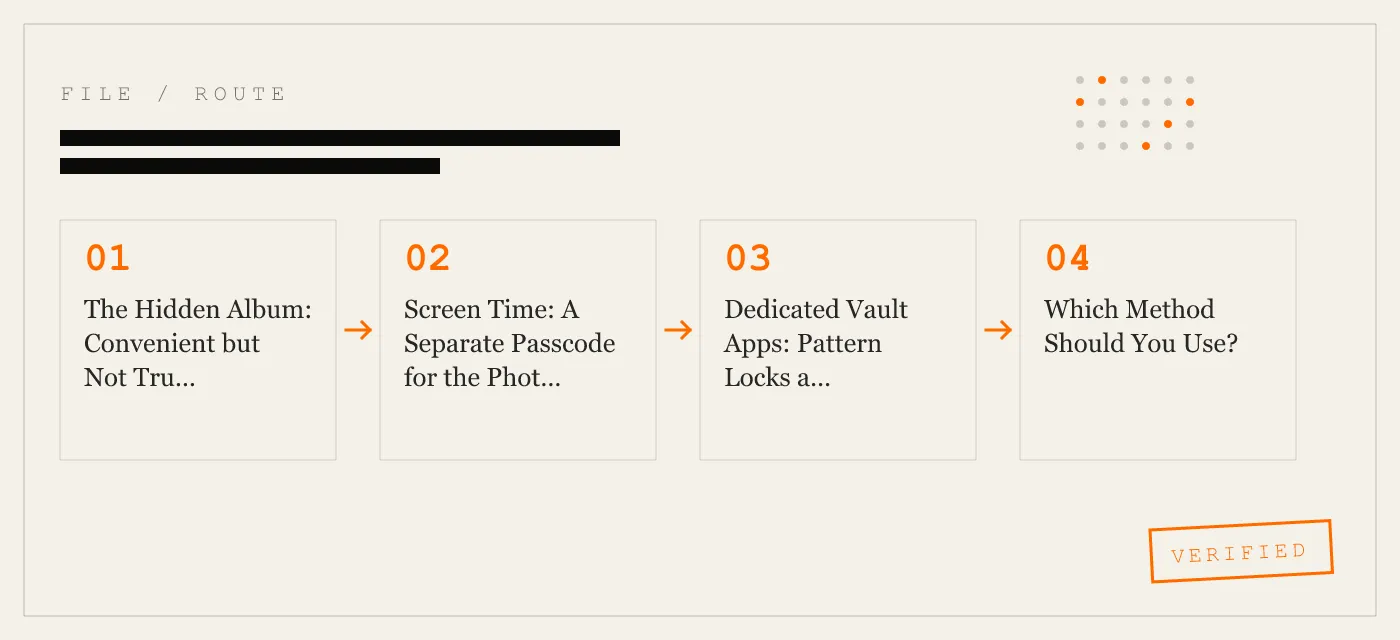
Dedicated Vault Apps: Pattern Locks and Encryption
The third option is a dedicated photo vault app. These apps create a separate, encrypted storage area that you lock with a pattern, PIN, or password. Photos moved into the vault are removed from the main Photos library and encrypted on disk.
This is the only method that provides true password protection for photos on iPhone. The vault lock is independent of the device passcode. The encryption prevents forensic extraction. And you can choose which photos to protect without affecting the rest of your library.
Vault apps vary widely in quality. Many are ad-supported and collect usage data. Some use weak encryption or store files in cloud servers. A few, like App-Vault, are designed from the ground up with a zero-knowledge architecture.
App-Vault’s approach is worth examining because it addresses the specific weaknesses of the other methods.
How App-Vault Protects Photos
App-Vault uses a 5×5 pattern lock instead of a numeric PIN or text password. The pattern is hashed through PBKDF2-SHA256 with 600,000 iterations — the OWASP 2026 recommendation — and a per-install 128-bit salt. The derived key is then wrapped by a key generated inside the iPhone’s Secure Enclave. The Secure Enclave key never leaves the chip. Apple’s Platform Security guide is the canonical reference for this hardware binding.
All files are encrypted with AES-256 in GCM mode, using a unique 96-bit nonce per file. The cipher is specified in NIST FIPS 197 and the AEAD mode in RFC 5116. Even the file catalog — names, dates, count — is sealed. An attacker with raw device access cannot tell how many files exist inside the vault.
App-Vault makes zero network calls by default. There are no servers, no accounts, no telemetry. Encrypted iCloud Backup is opt-in and uses a separate per-device backup key before upload. Apple receives only ciphertext.
Decoy Vault and Calculator Launcher
Two features address the shared-device scenario that the Hidden Album cannot handle.
The Decoy Vault is a second, mathematically independent vault catalog. You can set a different pattern that opens a separate set of photos. If someone forces you to unlock the vault — at a border crossing, for example — you can enter the decoy pattern and reveal only the decoy contents. The real vault remains sealed.
The Calculator Launcher is an alternate icon that makes the app look like a fully functional iOS calculator. A long-press on the equals key opens the vault. This design is built to satisfy Apple guideline 4.3 (alternate icons) by shipping a real calculator, not a fake shell. The vault is not accessible from the calculator interface without the deliberate gesture.
These features are not about hiding from family or cheating. They serve legitimate use cases: customs inspections, shared family iPads, lent phones, and professionals who carry privileged material.
Honest About Limits
App-Vault does not defend against everything. If someone installs a keylogger or a compromised configuration profile on your iPhone, the pattern can be captured at entry. The Secure Enclave binding mitigates extraction attacks, but it cannot protect against a compromised OS. App-Vault’s threat model explains exactly what it covers and what it does not.
There is also no password recovery. If you forget the pattern, the vault stays sealed. An optional written recovery passphrase is generated during setup. Lose that, and the data is gone. This is a property of the encryption, not a bug.
Which Method Should You Use?
The answer depends on your threat model.
Hidden Album with Face ID is fine for casual privacy — keeping holiday photos out of sight when a friend uses your phone. It is not a security measure.
Screen Time passcode works if you need to block the entire Photos app with a separate passcode and can tolerate the friction. It is a blunt instrument.
Dedicated vault app is the only option that provides encryption, a separate lock, and selective protection. If you need to password protect photos on iPhone against someone who knows your device passcode, this is the path.
App-Vault differs from other vault apps by publishing its full cryptography stack with primary-source citations. The encryption page links directly to NIST and RFC documents. The pattern lock page explains how the 5×5 grid feeds into key derivation. The zero-knowledge architecture describes what App-Vault cannot see.
For a direct comparison with the closest competitor, see App-Vault vs Vaultaire. For the category leader by install count, see App-Vault vs Keepsafe.
Summary
Password protecting photos on iPhone is possible, but the built-in tools have gaps. The Hidden Album lacks a separate password. Screen Time blocks too much. Vault apps fill the gap, but not all are built equally.
App-Vault’s approach — AES-256-GCM, PBKDF2 with 600,000 iterations, Secure Enclave binding, no servers, decoy vault, calculator launcher — addresses the specific weaknesses of Apple’s defaults. It is designed for the user who needs real encryption and a lock that does not share the device passcode.
If you are searching for como colocar senha nas fotos ocultas do iphone or how to put a passcode on iphone photos, the answer is: use a vault app with independent encryption. The Hidden Album and Screen Time are partial solutions. A dedicated vault is the only way to truly control access to your images.
Sources
- Apple Support: Hide and show photos on iPhone
- Apple Support: Use Screen Time on iPhone
- Apple Platform Security guide: Data protection overview
- Apple Developer: App Privacy details on the App Store
- NIST FIPS 197: Advanced Encryption Standard
DIAGRAM · 02
DOSSIER
QUESTIONS
10 sharp answers.
-
01 Can I put a password on hidden photos on iPhone?
The Hidden Album can be locked with Face ID or Touch ID, but there is no way to set a separate password for it. Anyone who knows your device passcode can access hidden photos. -
02 How do I change the password for hidden photos on iPhone?
You cannot change a password for hidden photos because there is no password. The only lock is biometric. To change the device passcode, go to Settings > Face ID & Passcode > Change Passcode. -
03 How do I password protect a photo album on iPhone?
You can use Screen Time to set a passcode for the Photos app, or use a third-party vault app like App-Vault that creates an encrypted album with its own pattern lock. -
04 Can I lock the Hidden Album with a passcode?
No. Apple only allows Face ID or Touch ID for the Hidden Album. For a passcode, you need a third-party vault. -
05 How do I hide photos on iPhone with a password?
Move photos to the Hidden Album and enable Face ID lock. For a password, use a vault app that offers a pattern or PIN lock. -
06 What is the best way to password protect photos on iPhone?
If you need a separate passcode, a dedicated vault app like App-Vault is the strongest option. It uses AES-256 encryption and a pattern lock, and it does not rely on your device passcode. -
07 Can I use Screen Time to password protect photos?
Yes. Go to Settings > Screen Time > App Limits, add the Photos app, and set a Screen Time passcode. This blocks the entire Photos app unless you enter the passcode. -
08 How do I password protect a single photo on iPhone?
There is no built-in way to protect a single photo. You must move it to the Hidden Album or a third-party vault. -
09 Is App-Vault safe to use?
App-Vault uses AES-256-GCM encryption, PBKDF2 key derivation with 600,000 iterations, and binds keys to the Secure Enclave. It makes no network calls and requires no account. The full cryptography stack is published. -
10 Can I recover photos if I forget the vault password?
App-Vault has no password reset. If you forget your pattern, the vault remains sealed. An optional written recovery passphrase is generated during setup.
RELATED DOSSIERS
Keep reading.
9 ENTRIES
- LINK / 01 · Pattern Lock
How Pattern Lock Works in App-Vault
The 5×5 grid that drives key derivation and decryption.
- LINK / 02 · Encryption
AES-256-GCM Encryption
The cipher, nonce, and key wrapping used to protect your files.
- LINK / 03 · Zero Knowledge
Zero-Knowledge Architecture
What App-Vault cannot see or access.
- LINK / 04 · Threat Model
App-Vault Security & Threat Model
What we defend against and what we do not.
- LINK / 05 · Comparison
App-Vault vs Vaultaire
Architecture differences between the two closest vault apps.
- LINK / 06 · Comparison
App-Vault vs Keepsafe
How App-Vault differs from the category leader.
- LINK / 07 · GUIDE
PBKDF2 Explained: The Password-Based Key Derivation Function That Secures Your Vault
What is PBKDF2? How it works, why direct hashing fails, the OWASP 2026 recommendation of 600,000 iterations, and how it compares to Argon2id, bcrypt, and scrypt.
- LINK / 08 · GUIDE
How to Recover Deleted Photos on iPhone
Step-by-step guide to recovering deleted iPhone photos from Recently Deleted, iCloud, backups, and third-party tools. Plus how to stop losing them.
- LINK / 09 · GUIDE
What Is Secure Enclave?
Learn what Secure Enclave is, which Apple security features rely on it, how apps use it, and the real limits of iPhone hardware security.
GET STARTED
Seal the vault.
Free to download. The free tier holds one file. Premium removes the limit — Weekly from $3.99 or Yearly from $29.99 with a 7-day free trial.