FILE G3 / IPHONE PRIVACY GUIDE
How to Find Hidden Apps on iPhone — and What Actually Stays Hidden
Someone handed you an iPhone and told you to find what is hidden on it. Maybe you are a parent checking a family device, an IT admin auditing a work phone, or a journalist verifying a source's device before a sensitive handoff. This guide covers every method iOS offers for hiding apps, every method for finding them, and the category of apps designed to survive all of those methods.
UPDATED · 2026-05-16 · REVIEWED BY APP-VAULT
TL;DR
iOS offers several built-in ways to hide apps — offloading, App Library removal, Screen Time restrictions, and MDM profiles. Each has a detectable trace. Calculator vault apps like App-Vault occupy a different category entirely: they replace the app icon with a working calculator and store files in an encrypted catalog that does not appear in Photos, Spotlight, or Settings. Standard "find hidden apps" techniques do not reach them because there is nothing to find at the OS level.
What “Hidden” Actually Means on iPhone
iOS does not have a single “hide app” switch. It has at least six different mechanisms that reduce an app’s visibility, and they leave different traces. Understanding each one is the first step toward finding what someone else has tried to conceal — or understanding what your own hiding method actually accomplishes.
Home screen removal. Long-press an app icon, tap “Remove App,” then “Remove from Home Screen.” The app vanishes from every home-screen page but stays in the App Library and in Settings > General > iPhone Storage. This is the most common method and the easiest to reverse.
App Library-only placement. Since iOS 14, apps can exist solely in the App Library without any home-screen icon. They are still searchable via Spotlight and visible in the App Library’s category folders.
Offloading. Settings > General > iPhone Storage lets you “Offload App,” which removes the binary but keeps the data. The icon stays on the home screen with a small cloud badge. Tapping it re-downloads the app. Offloaded apps are not hidden — they are archived.
Screen Time restrictions. Settings > Screen Time > Content & Privacy Restrictions > Allowed Apps can toggle individual apps off. The icon disappears from the home screen and App Library. The app remains installed but inaccessible without the Screen Time passcode.
Hidden home-screen pages. iOS 15+ lets users hide entire pages of apps. The apps still exist in the App Library and iPhone Storage. This is a cosmetic change, not a security measure.
MDM profiles. Mobile Device Management, used by companies and schools, can restrict or hide apps through configuration profiles. Check Settings > General > VPN & Device Management. MDM-hidden apps may not appear in any user-facing list.
Each method has a different detection path. None of them address the category this guide is really about: apps that do not want to be found at all.
How to Find Hidden Apps on iPhone — Every Built-In Method
Check iPhone Storage
Settings > General > iPhone Storage is the most thorough inventory of what is installed. Every app appears here with its name, version, and data footprint. Apps removed from the home screen, restricted via Screen Time, or hidden on other pages all show up. Offloaded apps appear with a cloud icon.
This is the first place to look. It is also the first place a sophisticated user will check, which is why vault apps that use alternate icons register under a different name.
Audit Screen Time
Settings > Screen Time > See All Activity shows every app that has been used, how often, and for how long. Even if an app’s icon is hidden, its usage appears here — unless the app has never been launched or the user has disabled Screen Time tracking.
Screen Time also reveals which apps are restricted. Go to Settings > Screen Time > Content & Privacy Restrictions > Allowed Apps. Any app toggled off is hidden from the home screen and App Library.
Search the App Library
Swipe past the last home-screen page to reach the App Library. Browse the category folders or use the search bar. Every installed app that has not been MDM-restricted appears here. This catches apps that were removed from the home screen but not restricted.
Use Spotlight
Pull down on any home-screen page to open Spotlight. Type the app name. Spotlight indexes apps by name, content, and metadata. It will not find an app that registers under a different name — which is exactly what a calculator vault does.
Check for MDM Profiles
Settings > General > VPN & Device Management lists every installed configuration profile. MDM profiles can hide apps, restrict features, and enforce policies. If a profile is present, the device is managed, and app visibility may be controlled by an administrator rather than the user.
Review the App Store Purchase History
Open the App Store, tap your profile picture, then “Purchased.” This shows every app ever downloaded with the current Apple ID, including deleted ones. It does not show apps downloaded with a different Apple ID, and it does not reveal whether an app is currently installed.
What These Methods Cannot Find
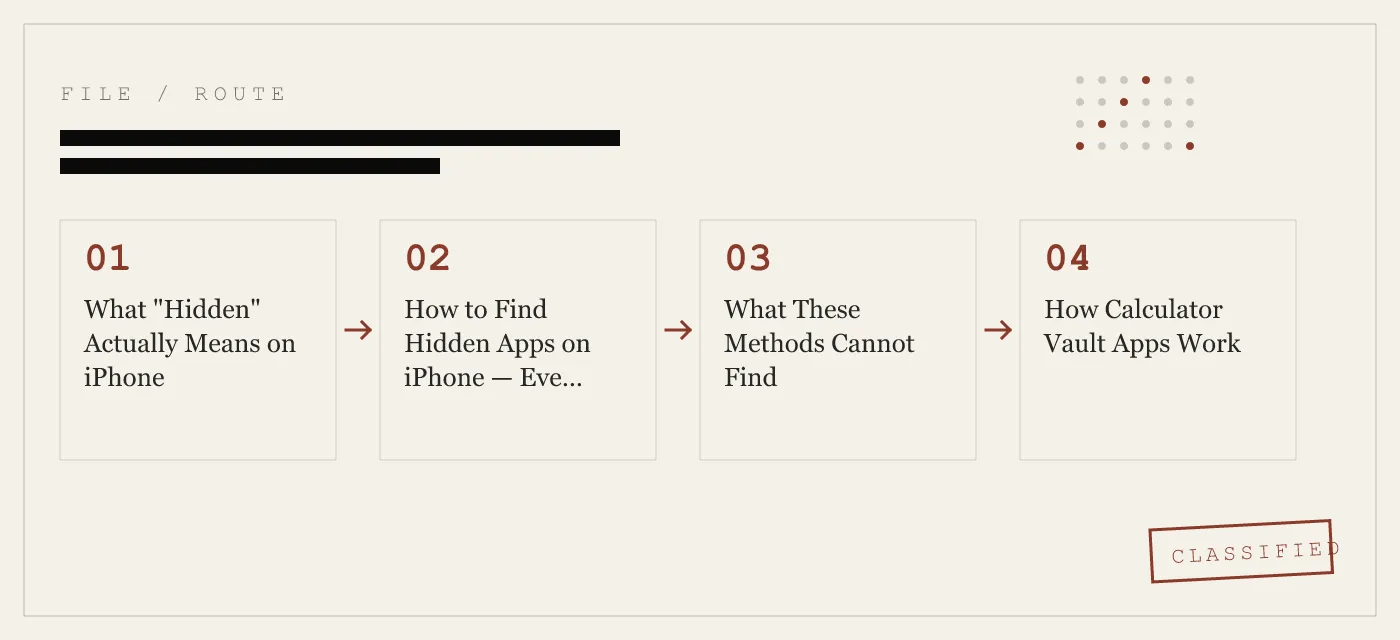
The six methods above cover every built-in iOS mechanism for locating apps. They share a single assumption: the app registers with iOS under its real name and appears in at least one system index.
Calculator vault apps break that assumption.
A calculator vault app like App-Vault uses iOS alternate-icon support to replace its icon with a fully functional calculator. The app registers as a calculator. It appears in iPhone Storage as a calculator. It appears in the App Library under Utilities, next to the real Calculator app. Spotlight finds it as a calculator.
The encrypted vault catalog — the photos, files, and metadata the user wants to protect — is not a separate app. It is data stored inside the calculator app’s container, encrypted with AES-256-GCM using a key derived from the user’s pattern through PBKDF2-SHA256 at 600,000 iterations, then wrapped by a key generated inside the iPhone Secure Enclave. The catalog does not appear in Photos. It does not appear in Spotlight. It does not appear in iPhone Storage as a separate item.
Standard “find hidden apps” techniques do not reach this category because there is nothing for them to find at the OS level. The app is visible. The vault is not.
How Calculator Vault Apps Work
A calculator vault app is a single iOS application that does two things: it functions as a calculator, and it stores encrypted files behind a pattern or passphrase.
The icon. App-Vault’s Calculator Launcher uses iOS alternate-icon support to display as a standard calculator. It passes Apple guideline 4.3 because the calculator is fully functional — it performs arithmetic, handles order of operations, and behaves identically to the built-in iOS Calculator. The vault is accessed through a long-press on the equals key, a gesture that does not exist in the real Calculator app.
The lock. App-Vault uses a 5×5 grid pattern lock. The pattern is not stored. It is fed into PBKDF2-SHA256 with 600,000 iterations and a per-install 128-bit salt, producing a 256-bit key. That key is then wrapped by a key generated inside the Secure Enclave — a hardware security module on the iPhone’s main chip that never exposes its key material to the operating system or to Apple.
The encryption. Every file in the vault is encrypted with AES-256-GCM, a NIST-approved authenticated encryption mode. Each file gets a unique 96-bit nonce. The cipher is specified in NIST FIPS 197, and the GCM mode is defined in RFC 5116. The key derivation follows the OWASP 2026 recommendation of 600,000 PBKDF2 iterations.
The catalog. Even the list of files — count, names, dates — is encrypted. An attacker with raw access to the app’s data container cannot determine how many files exist or what they are called. This is catalog encryption, and it is what separates a vault app from a simple encrypted folder.
No servers. App-Vault makes zero network calls by default. There is no account, no telemetry, no third-party SDKs. The privacy nutrition label declares no data collected. Encrypted iCloud Backup is opt-in, and files are sealed with a separate per-device backup key before upload. Apple receives only ciphertext.
The Decoy Layer
App-Vault includes a Decoy Vault — a second 5×5 pattern that opens a separate, mathematically independent vault catalog. The two catalogs share no keys, no metadata, and no visible relationship. Entering the decoy pattern opens the decoy vault. Entering the real pattern opens the real vault. There is no way to prove, from the outside, that a second catalog exists.
This is not about deception. It is about scenarios where one physical device serves more than one person — a shared family iPad, a device that changes hands, or a situation where someone is compelled to unlock the phone. The decoy vault provides a plausible, functional space that satisfies the request without exposing the primary catalog.
What App-Vault Does Not Defend Against
Honest threat modeling matters more than marketing claims. Here is what App-Vault does not protect against:
Physical access with the passcode. If someone knows the device passcode and the vault pattern, they can open the vault. App-Vault cannot defend against an attacker who has both.
Compelled decryption in some jurisdictions. In countries with laws that compel device unlocking — such as the UK under the Regulation of Investigatory Powers Act — a user may be legally required to provide the pattern. App-Vault has no mechanism to resist this.
Forensic tools with Secure Enclave access. If an attacker can extract keys from the Secure Enclave — something that requires specialized hardware and is generally limited to state-level actors — the wrapped key can be unwrapped. App-Vault’s threat model discusses this in detail.
Shoulder surfing. Someone watching the pattern being entered can replicate it. App-Vault does not include a duress code or self-destruct mechanism.
iCloud Backup without the backup key. If the user opts into encrypted iCloud Backup but loses the backup key, the vault data is unrecoverable. There is no password reset. No support tool. Forget the pattern, and the vault stays sealed.
Comparing Vault Apps
The calculator vault category is not new. Keepsafe is the category leader by install count; the full feature-by-feature breakdown is on App-Vault vs Keepsafe. Vaultaire is the closest architectural competitor; the detailed comparison is on App-Vault vs Vaultaire.
Most ad-supported photo vault apps run third-party SDKs that send usage telemetry off-device. Many store files in plaintext or with weak encryption. Some sync to cloud servers by default. App-Vault differs from these by publishing its full cryptography stack, running no network calls by default, and encrypting the catalog metadata — not just the files.
Practical Scenarios
Customs and border inspections. An officer scrolling through a camera roll will see only what the Photos app shows. A vault app’s contents are not in Photos. The calculator icon raises no flags.
Shared family iPads. Kids using the same device can have their own space. A parent auditing the device through iPhone Storage will see a calculator app. Without the long-press shortcut and the pattern, the vault is inaccessible.
Lent phones. A friend taking a group photo and swiping further through the camera roll will not find vault contents. They are not in the camera roll.
Selling or trading in an iPhone. Before handing over a device, users typically erase all content and settings. A vault app with no iCloud Backup ensures that encrypted data does not persist in Apple’s cloud.
Journalists, lawyers, medical professionals. Privileged work material on a personal device needs separation from personal photos and files. A vault app with catalog encryption ensures that even the existence of sensitive files is not visible.
Summary
Finding hidden apps on iPhone is straightforward if the app registers with iOS under its real name. Check iPhone Storage, Screen Time, the App Library, Spotlight, and MDM profiles. These methods catch every app that participates in iOS’s standard indexing.
Calculator vault apps do not participate. They register as calculators. They encrypt their catalogs. They leave no trace in Photos, Spotlight, or system search. The only way to find the vault is to know the long-press shortcut and the pattern — and without both, the vault stays sealed by mathematics, not by obscurity.
DIAGRAM · 04
DOSSIER
QUESTIONS
10 sharp answers.
-
01 How do I find hidden apps on iPhone?
Open Settings > General > iPhone Storage to see every installed app. Check Settings > Screen Time > See All Activity for usage records. Swipe to the App Library and browse categories. Search Settings > General > VPN & Device Management for hidden MDM profiles. None of these methods detect a calculator vault app that uses an alternate icon and encrypted storage. -
02 How do you unhide an app on iPhone?
Go to the App Library, find the app, long-press, and tap 'Add to Home Screen.' If the app is restricted via Screen Time, go to Settings > Screen Time > Content & Privacy Restrictions > Allowed Apps and toggle it on. If it was offloaded, tap the cloud icon to re-download. -
03 Can someone hide an app from the home screen without deleting it?
Yes. Long-press the app icon, tap 'Remove App,' then 'Remove from Home Screen.' The app stays installed and appears in the App Library. It still shows in iPhone Storage and Screen Time. -
04 Do hidden apps show up in iPhone Storage?
Yes. Settings > General > iPhone Storage lists every app and its data footprint, regardless of home-screen visibility. This is the single most reliable built-in method for auditing what is installed. -
05 What do hidden apps look like on iPhone?
They look like nothing. A removed app has no icon on the home screen. An offloaded app shows a small cloud badge. A calculator vault app looks like the iOS Calculator — because it is one, with a long-press shortcut to the encrypted vault. -
06 How do I find apps hidden by Screen Time?
Open Settings > Screen Time > Content & Privacy Restrictions > Allowed Apps. Any app toggled off here is hidden from the home screen and App Library. Toggle it on to restore visibility. -
07 Can MDM hide apps on iPhone?
Yes. Mobile Device Management profiles can restrict or hide specific apps. Check Settings > General > VPN & Device Management for installed profiles. This is common in corporate and school-managed devices. -
08 Are calculator vault apps detectable?
A calculator vault that uses iOS alternate-icon support registers as a calculator. It passes Apple guideline 4.3. The encrypted catalog does not appear in Photos, Spotlight, or iPhone Storage as a separate item. The only trace is the calculator app itself and its data size in storage settings. -
09 How do I find hidden apps on a family iPad?
Check iPhone Storage, Screen Time, and the App Library. If a calculator vault is present, it will appear as a calculator. Without knowing the long-press shortcut or the vault pattern, the encrypted contents are inaccessible. -
10 Can you search for hidden apps on iPhone?
Spotlight search finds apps by name and indexed content. It will not find a vault app that uses an alternate icon name and does not index its files. The App Library is a more thorough manual search, but it also relies on the app's registered name and category.
RELATED DOSSIERS
Keep reading.
9 ENTRIES
- LINK / 01 · App-Vault Feature
Calculator Launcher
A fully functional iOS calculator with a long-press equals-key shortcut to the encrypted vault. Built to satisfy Apple guideline 4.3.
- LINK / 02 · App-Vault Feature
Decoy Vault
A second 5×5 pattern that opens a separate, mathematically independent vault catalog. One device, two distinct encrypted spaces.
- LINK / 03 · App-Vault Concept
Pattern Lock
How App-Vault's 5×5 grid pattern works, how it derives encryption keys, and why the math matters.
- LINK / 04 · App-Vault Concept
AES-256-GCM Encryption
The full cryptography stack — cipher, key derivation, hardware binding, and the primary-source citations behind every claim.
- LINK / 05 · App-Vault Concept
Zero-Knowledge Architecture
What App-Vault cannot see, cannot know, and cannot hand over — by design.
- LINK / 06 · App-Vault Concept
Threat Model
What App-Vault defends against, what it does not, and why honest threat modeling matters more than marketing.
- LINK / 07 · GUIDE
How to Find Hidden Photos on iPhone
Step-by-step guide to finding hidden photos on iPhone: the built-in Hidden Album, third-party vault apps, iCloud recovery, and what encryption actually protects.
- LINK / 08 · GUIDE
How to Hide an Album on iPhone — Using Hidden Album, Private Folders, and Dedicated Vaults
Step-by-step guide to hiding photo albums on iPhone — using the Hidden Album, toggling its visibility, creating private folders, and when to use a dedicated vault app.
- LINK / 09 · GUIDE
How to Hide Apps on Android
Learn how to hide apps on Android, including Samsung Secure Folder steps, what launcher hiding does, and where private apps still remain visible.
GET STARTED
Seal the vault.
Free to download. The free tier holds one file. Premium removes the limit — Weekly from $3.99 or Yearly from $29.99 with a 7-day free trial.