FILE G2 / ANDROID PRIVACY GUIDE
How to Hide Photos on Android
Android gives you a few real ways to hide photos, but they do not offer the same protection. Some options only remove pictures from the main gallery view. Others place them inside a separate locked area. If you want private photos on Android to stay private, the important question is not whether they disappear from view, but whether they are actually encrypted and separated from the rest of the phone.
UPDATED · 2026-07-22 · REVIEWED BY APP-VAULT
TL;DR
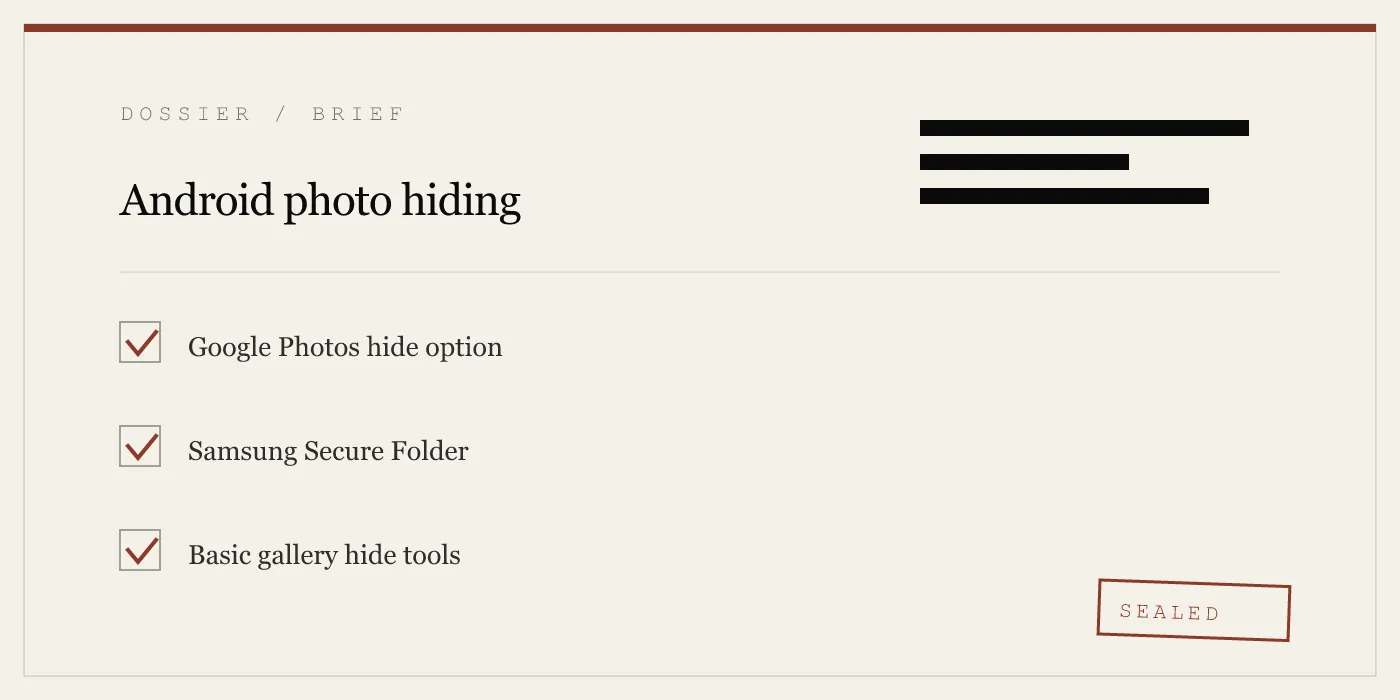
To hide photos on Android, use Google Photos Locked Folder or Samsung Secure Folder if your phone supports it; simple gallery hide options only hide photos from view and do not provide the same level of protection. Android privacy features vary a lot by phone, so the safest choice depends on which device you have and whether you need convenience or real separation.
Android users usually mean one of two things when they search for how to hide photos: either they want images out of the main gallery, or they want genuinely private photos on Android that stay behind a second barrier. Those are not the same job.
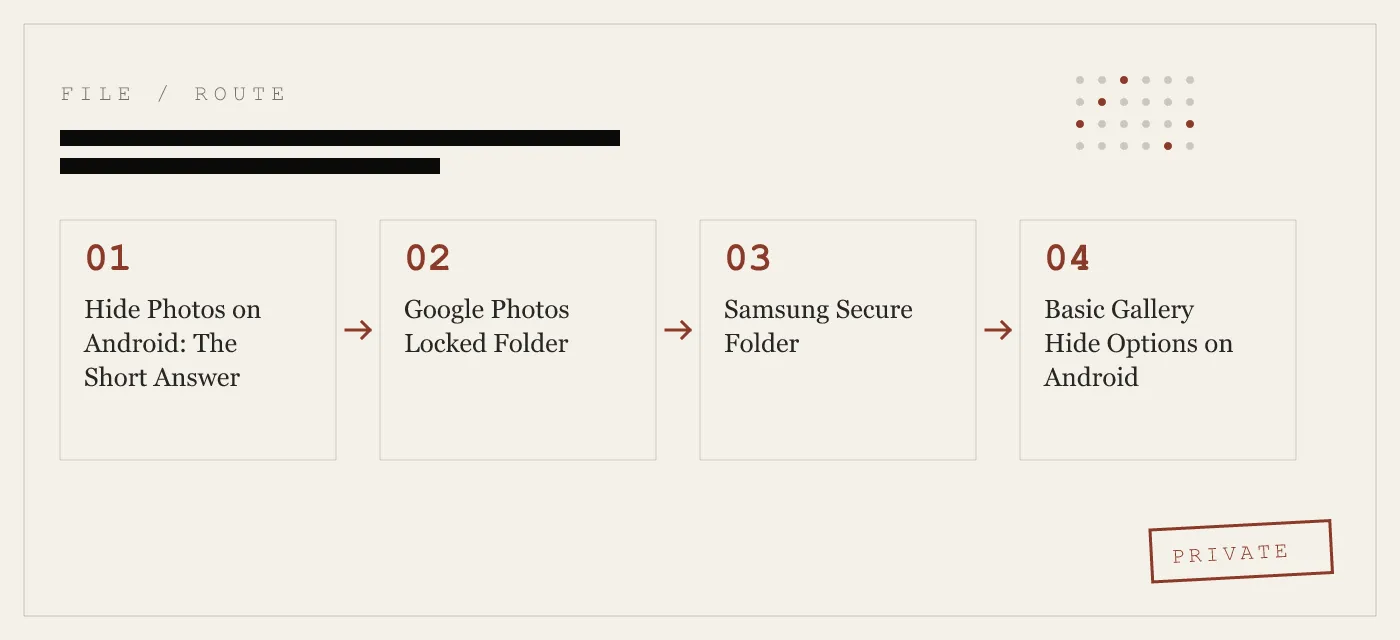
The main Android options covered by the queries this page already receives are:
- Google Photos Locked Folder
- Samsung Secure Folder
- Basic hidden album controls inside gallery apps
- Dedicated private vault apps
The right choice depends on your phone and your threat model. If you only need casual privacy on a shared family device, a hidden or locked area may be enough. If you need stronger protection, a separate protected container is better than a simple hide toggle.
Hide Photos on Android: The Short Answer
If you want to hide photos on Android, start with the strongest built-in option your phone already has:
- Google Photos: use Locked Folder if available.
- Samsung phones: use Secure Folder for stronger separation.
- Gallery hide options: fine for reducing clutter or preventing casual browsing, but usually lighter protection.
- Private vault apps: quality varies, so verify how they store data and whether they work fully on-device.
That is also the short answer to private photos Android: use a locked or separate protected area, not just a gallery visibility setting.
Google Photos Locked Folder
For many people on Android, Google Photos is the first place to look.
How to hide photos in Google Photos
If your device supports it, the usual flow is:
- Open Google Photos
- Select the photos you want to hide
- Tap the menu
- Choose Move to Locked Folder
- Confirm with your device authentication
This is the cleanest answer for users searching hide photos android on a non-Samsung device, because it is simple and built into an app many Android users already have.
What Google Photos Locked Folder is good for
Locked Folder is useful when you want photos removed from the main photo grid and placed behind another unlock step. That makes it a better fit for private photos Android than a plain hidden album.
Limitation to know
Locked Folder is still a feature inside Google Photos, so you should think of it as a product feature, not a universal Android standard. Availability and exact prompts can vary by device and software setup.
Samsung Secure Folder
If you have a Samsung phone, Secure Folder is the strongest built-in option named in this guide.
How to hide photos on Samsung with Secure Folder
On a Samsung phone, the usual setup path is:
- Open Settings
- Search for Secure Folder
- Follow the setup flow
- Open Secure Folder
- Add or move the photos you want protected
You can also move items from Samsung’s photo tools into Secure Folder after setup.
Why Samsung Secure Folder stands out
Secure Folder is more than a gallery hide setting. It is meant to create a separate protected space on the phone for photos, files, and apps. That is why it is the better answer for both hide photos android and private photos android if you are already in the Samsung ecosystem.
Samsung Gallery hide albums vs Secure Folder
Samsung also offers lighter gallery-level hiding on many phones.
| Samsung option | What it does | Best for | Main limitation |
|---|---|---|---|
| Hide albums in Gallery | Removes albums from normal gallery view | Reducing visibility in everyday use | Not the same as a separate protected space |
| Secure Folder | Places items in a separate protected area | Stronger privacy on a Samsung phone | Samsung-only |
If you only want to keep a few images out of sight in the normal gallery, Hide albums can be enough. If you want stronger separation, use Secure Folder.
Basic Gallery Hide Options on Android
Many Android phones have some version of a hidden album, private album, or gallery hide toggle.
How these options usually work
The exact labels vary, but the pattern is similar:
- Open your phone’s Gallery or Photos app
- Select the image or album
- Open the menu
- Look for Hide, Private, Locked, or Move to private album
That can work well for casual privacy, especially on a shared household device where the main concern is someone scrolling your camera roll.
Where these options fall short
A gallery hide control and a locked container are different things. Some Android phones simply remove images from the normal gallery view. Others move them into a separate area that requires device authentication. The interface can look similar even when the protection level is not.
That is why we do not treat every “hide” button as equivalent.
Private Photos on Android: Which Method Fits Your Situation
The query private photos android usually signals a stronger intent than a basic gallery tidy-up. Here is the practical breakdown.
For casual privacy
Use a hidden album or Google Photos Locked Folder if the goal is to keep pictures out of the main gallery and away from routine browsing.
Good fit for:
- Shared family devices
- Selling or showing your phone briefly
- Shoulder-surfing concerns
For stronger built-in protection
Use Samsung Secure Folder if you have a Samsung device and want a more clearly separated protected space.
Good fit for:
- Shared devices
- Travel
- Journalism, legal, or medical work where basic gallery hiding is not enough
For a separate vault app
A dedicated vault can make sense if you want a purpose-built private container. But on Android, quality varies, so the important questions are straightforward:
- Does it require an account?
- Does it work offline?
- Does it say whether files stay on-device?
- Does it explain its security model clearly?
We would apply that test to any app in this category, including Keepsafe comparisons users may be considering.
Hidden Album vs Locked Folder vs Secure Folder
This is the comparison most Android users actually need.
| Method | Typical path | Privacy level | Best use |
|---|---|---|---|
| Hidden album | Gallery app → select album/photo → Hide | Low to medium | Casual privacy, cleaner gallery |
| Locked Folder in Google Photos | Google Photos → select items → Move to Locked Folder | Medium | Private photos on general Android devices |
| Secure Folder on Samsung | Settings → Secure Folder → move items inside | Medium to high | Stronger built-in privacy on Samsung |
The key distinction is simple: hidden means out of sight, while locked or secure usually means behind another authentication step.
Are Private Vault Apps Better?
Sometimes yes, but you need to inspect the model.
A dedicated vault app can be useful when you want:
- A separate app boundary
- A dedicated unlock method
- Features built around privacy rather than gallery organization
That said, “vault app” is not automatically better than a built-in option like Samsung Secure Folder. Some apps are just wrappers around hidden media. Others are more serious.
Because this site is built by the App-Vault team, our first-party example is on iPhone rather than Android: App-Vault stores photos, videos, and documents in an on-device AES-256-GCM encrypted container, uses a 5×5 pattern lock, derives keys with PBKDF2-SHA256, wraps keys with the iPhone Secure Enclave, and excludes the vault from iCloud Backup and iTunes/Finder backups. It can also present as a calculator with an optional calculator launcher, and Premium adds a Decoy Vault for situations like shared family devices, customs and border travel, or sensitive professional work. App-Vault is iPhone and iPad only.
That matters here for one reason: it shows what a serious vault architecture looks like. When you evaluate Android vault apps such as Keepsafe, ask whether the app explains its storage model, account model, and privacy boundaries with the same level of specificity.
Android vs iPhone Vault Expectations
Android gives you more variety in how you can hide photos, but that variety is also the problem. The Android answer depends heavily on the phone brand, the gallery app, and whether the feature is a simple hide toggle or a real protected area.
On iPhone, the hardware and security model are more consistent. App-Vault is built around that consistency:
| Feature | Android built-in options | App-Vault on iPhone |
|---|---|---|
| Works as a general answer across devices | No, varies by brand | Yes, one app model on supported Apple devices |
| Separate vault app | Sometimes | Yes |
| Calculator-style launcher | Some users search for this category | Yes, optional |
| On-device encrypted container | Varies by method | Yes |
| Account required | Varies | No |
| Off-device vault copy held by vendor | Varies | No server for vault contents |
That does not make Android unusable for photo privacy. It just means you need to be more careful about what your phone’s hide feature actually does.
How to Choose the Best Method to Hide Photos on Android
Use this quick rule set.
Choose Google Photos Locked Folder if:
- You use Google Photos
- You want a built-in option on a non-Samsung Android phone
- You want better privacy than a simple hidden album
Choose Samsung Secure Folder if:
- You have a Samsung phone
- You want the strongest built-in option named in this guide
- You want more than a gallery-level hide toggle
Choose a gallery hide option if:
- You only need casual privacy
- You mostly want to reduce visible clutter
- You understand that hidden is not always the same as locked
Consider a private vault app if:
- You want a dedicated privacy tool
- You are willing to verify how it handles storage, accounts, and offline use
- You want features that gallery apps usually do not offer
Our Practical Recommendation
For the broad query hide photos android, our recommendation is:
- Use Google Photos Locked Folder if your device supports it and you want a straightforward built-in option.
- Use Samsung Secure Folder if you are on Samsung and want stronger built-in separation.
- Use gallery hide tools only for light privacy, not as your default answer for sensitive material.
- Treat private vault apps case by case. Do not assume they are all equally private just because they use the word “vault.”
For the query private photos android, the answer is even simpler: prefer a locked or separate protected space over a standard hidden album.
Limitations and Honesty Notes
A few limits apply no matter which Android method you use:
- If someone can compel you to unlock the phone or the protected area, software cannot solve that.
- Device-specific behavior varies across Android brands and software versions.
- A hidden album, a locked folder, and a secure folder are different categories, even when the menus look similar.
- Private vault apps vary widely, so the vendor’s documentation matters.
That is also why we publish App-Vault’s threat model and cryptography references openly. A privacy product should say what it protects against, what it does not protect against, and what standards back its claims.
The Bottom Line
If you want to hide photos on Android, use Google Photos Locked Folder or Samsung Secure Folder where available. If you want private photos on Android, do not rely on a basic hide toggle alone unless your goal is only casual privacy.
And if you are comparing Android vault apps with purpose-built iPhone vaults, use architecture as the test. App-Vault’s AES-256-GCM encryption and threat model are documented because strong privacy claims should be inspectable, not vague.
Sources
- Samsung: Secure Folder overview
- NIST FIPS 197: Advanced Encryption Standard
DIAGRAM · 04
DOSSIER
QUESTIONS
12 sharp answers.
-
01 How do I hide photos on a Samsung Galaxy phone?
Use Samsung Secure Folder for the strongest built-in option on Samsung. Open Settings, search for Secure Folder, set it up, then move photos into it; if you only want them out of the main gallery view, Samsung Gallery also lets you hide albums. -
02 How do I hide pictures on a Xiaomi phone?
Many Xiaomi phones include gallery-level hide tools or private album features, but the exact labels vary by software version. If your phone shows a private or hidden album option inside Gallery, use that for convenience, but treat it as different from Samsung Secure Folder. -
03 How do I hide photos on a OnePlus phone?
Many OnePlus phones include a private or locked area inside the gallery app. Open Gallery or Photos, look for a private, safe, or locked section, and move images there if available on your device. -
04 Can I hide photos on stock Android without an app?
Yes. You can usually use Google Photos Locked Folder if it is available on your device. Some gallery apps also let you hide albums, but that is often just a visibility control. -
05 Does the built-in Android hide feature actually encrypt my photos?
Sometimes, but not always. A hidden album and a locked folder are not the same thing, so you need to check whether your phone is only hiding items from the gallery or moving them into a separate protected area. -
06 What is the most secure way to hide photos on Android?
On Samsung, Secure Folder is the strongest built-in Android option named in this guide. On other Android phones, the best available option is usually the phone’s own locked or private area if it has one, but protection varies by brand and software. -
07 Can someone recover hidden photos if I factory reset my phone?
Hidden photos stored only on the phone may be lost after a factory reset. Whether they can be recovered depends on where they were stored and whether they were in a separate protected area or just hidden from view. -
08 Do third-party photo vault apps on Android work offline?
Some do and some do not. You should verify whether the app requires an account, whether it stores anything off-device, and whether the vendor explains how the vault works. -
09 How do I hide photos in the Samsung Gallery app without Secure Folder?
Open Samsung Gallery, go to the menu and gallery settings, then use Hide albums if your version includes it. This is useful for tidying the gallery, but it is not the same as moving files into Secure Folder. -
10 What happens to hidden photos when I update Android?
Photos in a built-in hidden or locked area usually remain there after a normal update. The main risk is not the update itself, but relying on a weak hide feature that only changes visibility. -
11 How do I hide photos on Android with Google Photos?
Use Locked Folder in Google Photos if your device supports it. In Google Photos, select the pictures, tap Move to Locked Folder, and confirm with your device authentication. -
12 What are the best options for private photos on Android?
For private photos on Android, the best built-in choices in this guide are Google Photos Locked Folder and Samsung Secure Folder. If your phone only offers a hidden album, assume it is lighter privacy, not the same thing as a dedicated protected space.
RELATED DOSSIERS
Keep reading.
9 ENTRIES
- LINK / 01 · GUIDE
What Is a Calculator Vault App and How Does It Work?
The architecture behind calculator vault apps on iPhone — how they pass Apple Review, what encryption they use, and why the calculator disguise matters.
- LINK / 02 · GUIDE
How to Hide Photos on Samsung Galaxy
Samsung-specific methods including Secure Folder, Knox encryption, and the gallery hide toggle. Step-by-step for Galaxy S24, S25, Z Fold, and Z Flip.
- LINK / 03 · FEATURE
AES-256-GCM Encryption
App-Vault's cryptography stack — AES-256 in GCM mode, unique 96-bit nonce per file, PBKDF2-SHA256 with 600,000 iterations, Secure Enclave key wrapping.
- LINK / 04 · FEATURE
Threat Model
What App-Vault defends against and what it does not. Physical device seizure, forensic tool attacks, shoulder-surfing, and the limits of software encryption.
- LINK / 05 · FEATURE
Zero-Knowledge Architecture
App-Vault makes zero network calls by default. No servers, no accounts, no telemetry. Encrypted iCloud Backup is opt-in and uses a separate per-device backup key.
- LINK / 06 · COMPARE
App-Vault vs Keepsafe
Feature-by-feature comparison of App-Vault and Keepsafe — encryption, privacy, decoy vault, and calculator launcher.
- LINK / 07 · GUIDE
How to Hide Photos from Camera Roll on iPhone: Beyond the Hidden Album
Learn how to hide photos from camera roll on iPhone. Why the Hidden Album still syncs to iCloud and how a vault app like App-Vault removes them entirely.
- LINK / 08 · GUIDE
How to Hide Photos on iPhone — Every Method, Honestly Evaluated
A practical guide to hiding photos on iPhone — the built-in Hidden Album's real limits, how dedicated vault apps work, and which approach fits your threat model.
- LINK / 09 · GUIDE
How to Hide Text Messages on iPhone: iOS Privacy Tools and the iMessage Locking Problem
Learn how to hide text messages on iPhone using Notification privacy, Messages filters, Screen Time, and why no app can lock iMessages.
GET STARTED
Seal the vault.
Free to download. The free tier holds one file. Premium removes the limit — Weekly from $3.99 or Yearly from $29.99 with a 7-day free trial.