FILE G12 / GUIDE
How to Hide Text Messages on iPhone: iOS Privacy Tools and the iMessage Locking Problem
Every week, tens of thousands of iPhone users search for how to hide text messages. The answer is not a single toggle. iOS offers several built-in controls that reduce visibility of conversations, but none truly lock the Messages app. This guide covers every legitimate method and explains the architectural gap that no third-party app — including App-Vault — can bridge.
UPDATED · 2026-05-16 · REVIEWED BY APP-VAULT
TL;DR
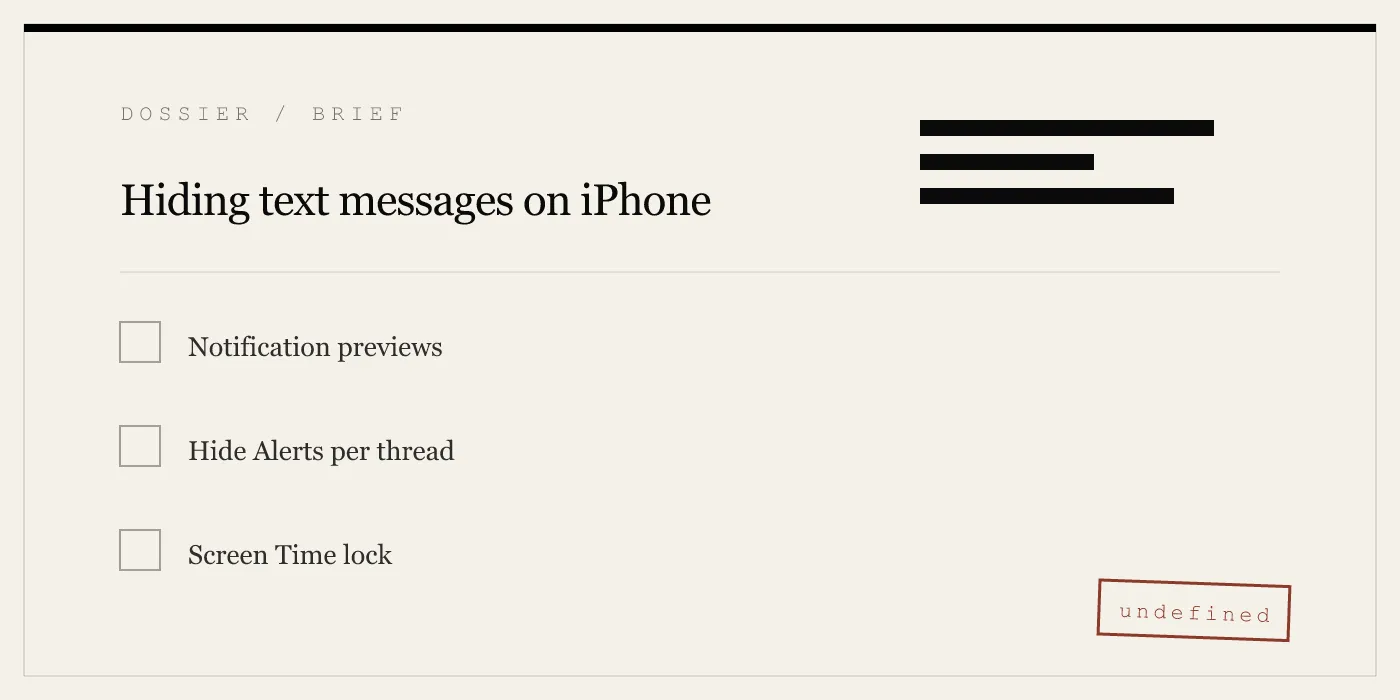
You can hide text messages on iPhone by turning off notification previews, enabling Hide Alerts per thread, filtering unknown senders, and using Screen Time to lock the Messages app with a separate passcode. But none of these methods prevent someone who unlocks your phone from opening Messages and reading everything. Third-party vault apps like App-Vault cannot hide iMessages because iOS restricts access to the Messages database. For truly sensitive conversations, consider end-to-end encrypted messaging apps with disappearing messages, and use a vault app for photos and notes.
What “Hiding” a Text Message Actually Means
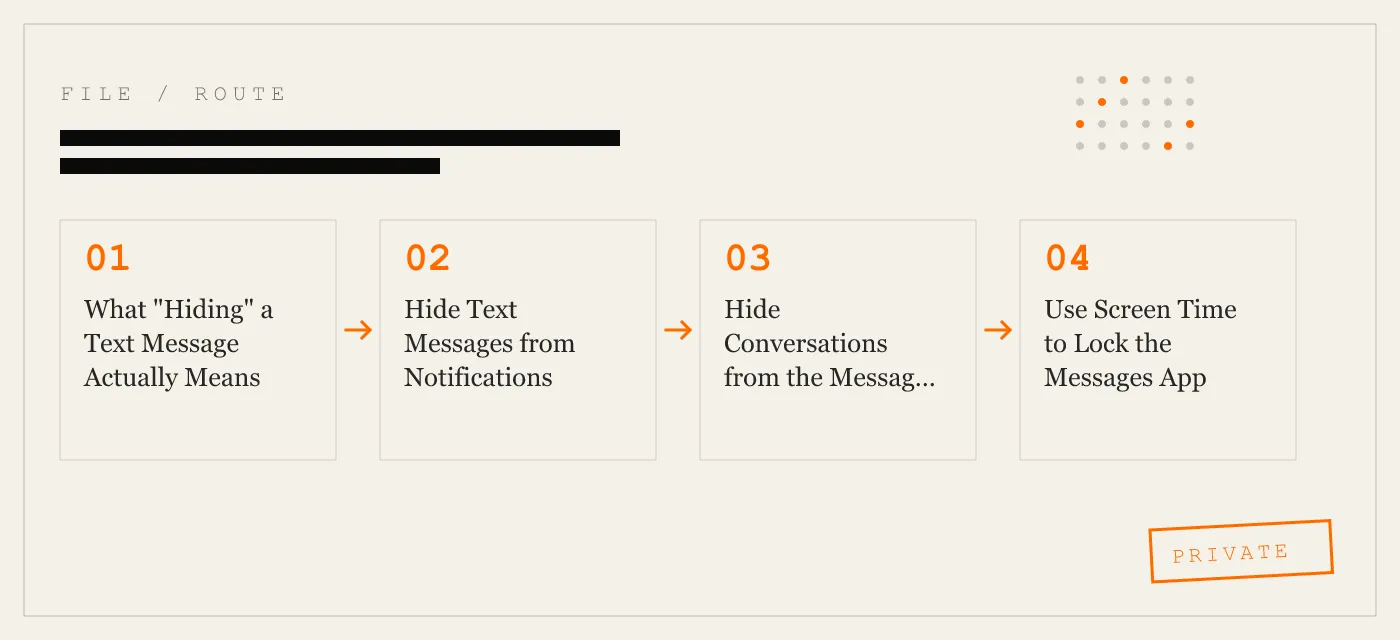
The phrase “hide a text message” covers three distinct levels of concealment. Mixing them up leads to frustration.
Level 1: Hide from notifications. The message arrives, but no content appears on your lock screen, banner, or notification center. The conversation stays in the Messages app, unread badge included.
Level 2: Hide from the conversation list. The thread is not visible when you open Messages. iOS offers no native archive or hide function. The only way to achieve this is to delete the thread entirely — which is permanent unless you have an iCloud backup.
Level 3: Lock the Messages app. Someone who picks up your unlocked phone cannot open Messages without a passcode or biometric. iOS does not provide this natively. Screen Time can approximate it, with caveats.
Each level has a different tool. None of them fully satisfy the fantasy of a single “hide” button.
Hide Text Messages from Notifications
This is the easiest and most reliable method. It prevents bystanders from reading message content on your lock screen or in notification banners.
Disable previews entirely. Go to Settings > Notifications > Messages > Show Previews. Set it to “Never.” Now every message shows only “Messages” with no content, regardless of lock state. If you want previews only when unlocked, choose “When Unlocked” — but note that notifications on the lock screen still show the sender name unless you also disable “Show on Lock Screen.”
Hide alerts per thread. Open Messages, swipe left on a conversation, and tap the bell icon. The thread stays in the list with a bell crossed out. You will not receive banners or sounds for new messages in that thread. The sender name and a placeholder still appear on the lock screen if previews are enabled, but the message body is suppressed.
Use a Focus mode. Create a custom Focus (Settings > Focus) that silences Messages notifications from specific people or all contacts. You can schedule it for certain times or locations. This is useful for shared devices or when you hand your phone to someone for a moment.
These notification-level controls are sufficient for most casual privacy needs: shoulder-surfing on a train, a friend borrowing your phone to take a photo, or a customs officer glancing at your lock screen. They do not hide the conversation from anyone who opens the Messages app.
Hide Conversations from the Messages List
iOS does not offer a hide or archive feature for individual threads. The Messages app shows every active conversation, sorted by most recent. The only way to remove a thread from the list is to delete it.
Delete a thread. Swipe left on the conversation and tap Delete. The thread is gone. If you have iCloud Messages enabled, the deletion syncs across your devices. There is no trash folder. Once deleted, you cannot recover the messages unless you have a backup.
Pinning and ordering. You can pin up to nine conversations to the top of the list. This does not hide other threads, but it pushes them down. Not a hiding technique, but it reduces visual clutter.
Unknown Senders filter. Go to Messages > Filters > Unknown Senders. Conversations from people not in your contacts are moved to a separate tab. This hides them from the main list. It works well if you receive many automated SMS codes or spam. It does not hide threads from known contacts.
The gap. There is no way to keep a thread in Messages while making it invisible. If you need to preserve the conversation for later but do not want it visible, you must delete it and rely on a backup — which is not hiding; it is deletion plus deferred recovery.
Use Screen Time to Lock the Messages App
Screen Time includes an app limit feature that can block access to Messages after a set duration. Combined with a Screen Time passcode, this effectively locks the app.
Setup. Go to Settings > Screen Time > Turn On Screen Time. Set a Screen Time passcode (different from your device passcode). Then tap App Limits > Add Limit > Messages. Set the time limit to 1 minute. Once the minute is used, Messages is blocked until you enter the Screen Time passcode.
Behavior. When the limit is reached, the Messages icon on the home screen shows a sand timer. Tapping it prompts for the Screen Time passcode. You can enter it to use the app for another minute, or you can block it entirely by choosing “Block at End of Limit.” The app remains locked until you disable the limit or enter the passcode.
Caveats. The Screen Time passcode is shared across all restrictions. If you also use Screen Time for parental controls, your child could know the passcode. The lock is not invisible — the sand timer icon is a giveaway that something is restricted. And the lock applies to the entire Messages app; you cannot lock individual threads.
When to use it. The Screen Time lock is best for shared family iPads or devices you lend for a specific task. It is not subtle, but it is the only native method that prevents someone from opening Messages at all.
The iMessage Locking Gap: Why No App Can Hide iMessages
Every month, App-Vault receives emails asking, “Does your app hide my iMessages?” The answer is no, and it is not a feature we will ever build. The reason is architectural, not a product choice.
iOS sandboxes every app. The Messages app’s database is stored in a protected directory that only the Messages app and the system can access. No third-party app — vault or otherwise — can read, modify, or intercept iMessages. This is a security boundary enforced by the operating system. It prevents malware from stealing your texts, but it also prevents legitimate privacy apps from locking or hiding them.
You cannot install a “vault for iMessages” on a non-jailbroken iPhone. Any app that claims to do so is either lying, using a loophole that Apple will patch, or relying on you to manually copy messages into its own storage (which is not hiding — it is duplication).
What App-Vault can do. App-Vault encrypts and hides photos, videos, notes, and documents. If someone sends you a sensitive photo in iMessage, you can save it to App-Vault and delete the original message. The photo is then encrypted with AES-256-GCM, bound to the Secure Enclave, and stored in a catalog that even the Messages app cannot access. The conversation itself remains in Messages, but the incriminating attachment is gone.
See the threat model page for a full list of what App-Vault defends against and what it does not.
What You Can Hide with App-Vault
App-Vault is not a message vault, but it is a vault for the media that flows through messages. If your privacy concern is a specific photo, video, or PDF that arrived via iMessage, App-Vault solves that problem.
Import from Messages. Open App-Vault, tap Import, select from Photos or Files. The file is copied into the vault’s encrypted container. You can then delete the original from Messages and from the Photos app. The vault copy is protected by a 5×5 Pattern Lock with key derivation hardened by 600,000 PBKDF2 iterations and the Secure Enclave.
No trace left behind. Because App-Vault makes no network calls — it has zero-knowledge architecture — there is no server log of the import. Even Apple cannot see what you stored.
Calculator Launcher. If you need to open the vault discreetly, the Calculator Launcher provides a fully functional iOS calculator. A long-press on the equals key opens the vault. Approved under Apple guideline 4.3 for alternate icons.
Decoy Vault. If you share a device, the Decoy Vault offers a second pattern that opens a mathematically independent catalog. A separate set of files for a separate context.
These features are for photos, videos, and documents — not iMessages. Use them for the attachments, not the conversations.
Should You Use a Third-Party Messaging App?
If your need is to hide entire conversations, the most effective solution is to move those conversations to an app that supports disappearing messages and app locking.
Signal. Offers disappearing messages (from 5 seconds to 4 weeks) and a registration lock PIN. You can enable Screen Lock within Signal (Settings > Privacy > Screen Lock) to require Face ID or Touch ID to open the app. Signal’s messages are end-to-end encrypted.
WhatsApp. Similar disappearing messages (24 hours, 7 days, 90 days) and app lock (Settings > Privacy > App Lock). Requires Face ID to open.
Telegram. Secret Chats with end-to-end encryption and self-destruct timers. The main app lock (Settings > Privacy and Security > Passcode & Face ID) secures the entire app.
These apps do not hide their icon from the home screen. If someone sees Signal on your phone, they know you use it. But the conversations inside are locked behind biometrics.
Limitation for SMS. These apps only work for their own messaging network. They cannot receive or hide standard SMS/iMessages. For SMS, you are stuck with the built-in Messages app.
The Right Tool for the Right Threat Model
Not every privacy concern requires the same solution. Map your threat to the correct tool.
Shoulder-surfing in public. Turn off notification previews. Use Hide Alerts for sensitive threads. No vault app needed.
Lending your phone to a friend to take a photo. Enable Guided Access (Settings > Accessibility > Guided Access) to lock the phone to one app. The friend cannot switch to Messages.
Shared family iPad. Use Screen Time to lock Messages. Or set up separate user accounts if the iPad supports it (iPadOS 13+). For media, use App-Vault’s Decoy Vault.
Customs or border inspection. Delete sensitive conversations before travel. Use App-Vault for photos and documents. The vault’s encryption withstands physical access because the Secure Enclave key never leaves the chip.
Selling or trading in your iPhone. Erase all content and settings (Settings > General > Transfer or Reset iPhone). Do not rely on hiding. A factory reset is the only safe method.
Journalist or lawyer with privileged messages. Do not use SMS or iMessage for sensitive communications. Use Signal with disappearing messages. Store supporting documents in App-Vault.
No single app or setting covers every scenario. The search for “how to hide text messages on iphone” often reflects a desire for a magic bullet. That bullet does not exist. But the combination of iOS notification controls, Screen Time, and a dedicated vault for media covers the vast majority of real-world privacy needs.
Sources
- Apple Support: Hide and show photos on iPhone
- Apple Support: Use Screen Time on iPhone
- Apple Platform Security guide: Data protection overview
- Apple Developer: App Privacy details on the App Store
- NIST FIPS 197: Advanced Encryption Standard
DIAGRAM · 03
DOSSIER
QUESTIONS
10 sharp answers.
-
01 Can I hide a specific iMessage thread without deleting it?
No. iOS does not offer a hide or archive feature for individual threads. The closest option is to enable Hide Alerts (swipe left and tap the bell icon), which stops notifications but leaves the thread visible in the list. -
02 How do I password protect the Messages app on iPhone?
iOS has no native password lock for the Messages app. You can use Screen Time to set an app limit with a passcode: go to Settings > Screen Time > App Limits > Add Limit > Messages. Once the time limit is reached, the app is blocked until you enter the Screen Time passcode. -
03 Does App-Vault hide iMessages?
No. App-Vault is a photo and file vault. It cannot access or hide iMessages because iOS sandboxes the Messages app. If you receive a sensitive image in iMessage, you can save it to App-Vault and delete the original message, but the conversation itself remains in Messages. -
04 How do I hide text messages on iPhone from my lock screen?
Go to Settings > Notifications > Messages > Show Previews and select 'Never' or 'When Unlocked' (with Face ID/Touch ID). This prevents message content from appearing on the lock screen, but the sender name and a placeholder still show unless you also turn off 'Show on Lock Screen'. -
05 Will deleting a text message hide it from someone who checks my phone?
Deleting a conversation removes it from the Messages list. If the other person has iCloud Messages enabled, the deletion syncs. But a forensic recovery tool could potentially retrieve deleted messages from the device database. For sensitive content, consider using an encrypted messaging app that supports disappearing messages. -
06 Can I hide text messages from my spouse using Screen Time?
Screen Time with a separate passcode can restrict access to Messages, but the passcode is shared across all Screen Time restrictions. If you set it, your spouse may notice the Messages app is locked. This method is better suited for shared family iPads or lent phones where you can control the passcode. -
07 What is the difference between Hide Alerts and muting a conversation?
Hide Alerts is the same as muting. It silences notifications and removes the thread from the notification center. The thread remains visible in the Messages list with a bell icon crossed out. It does not hide the conversation from anyone who opens the app. -
08 Is there a way to hide text messages on iPhone without using Screen Time?
Yes. You can turn off notification previews, enable the Unknown Senders filter, and delete sensitive threads after reading. None of these methods lock the app, but they reduce exposure on the lock screen and in the notification center. -
09 Can I use a third-party messaging app to hide texts from my iPhone's Messages app?
Apps like Signal, WhatsApp, and Telegram let you enable disappearing messages and lock the app with a PIN or biometric. However, they do not hide the app icon. If someone opens Signal, they see your conversations unless you also use a vault app that can hide the Signal app icon (which iOS does not allow). -
10 What does App-Vault offer for privacy that relates to messages?
App-Vault encrypts and hides photos, videos, notes, and documents. If you receive a sensitive image or file in iMessage, you can import it into App-Vault and delete the original. App-Vault's zero-knowledge architecture ensures no one — not even App-Vault — can access your files. See the [threat model](/security/) page for what App-Vault does and does not defend against.
RELATED DOSSIERS
Keep reading.
9 ENTRIES
- LINK / 01 · FEATURE
Calculator Launcher
App-Vault's alternate icon launches the vault via a long-press on the equals key.
- LINK / 02 · FEATURE
Decoy Vault
A second pattern opens a mathematically independent vault for shared devices.
- LINK / 03 · FEATURE
Pattern Lock
5x5 grid with hardware-bound key derivation — no server, no telemetry.
- LINK / 04 · TECHNICAL
AES-256-GCM Encryption
NIST standard cipher with per-file nonces, wrapped by Secure Enclave.
- LINK / 05 · ARCHITECTURE
Zero-Knowledge Architecture
App-Vault has no servers, no account, no ability to decrypt your data.
- LINK / 06 · COMPARISON
App-Vault vs Vaultaire
Feature-by-feature breakdown against the closest competitor.
- LINK / 07 · GUIDE
How to Hide Videos on iPhone: Three Methods That Actually Work
Hide videos on iPhone using Apple’s Hidden Album or a vault app. Compare privacy, password protection, and encryption limits.
- LINK / 08 · GUIDE
How to Lock Photos on iPhone Without Getting Fooled by Half-Protection
Three independent methods to lock photos on iPhone: Face ID Hidden Album, Screen Time restrictions, and third-party app vaults like App-Vault.
- LINK / 09 · GUIDE
iCloud Encryption Explained — What Apple Protects, What It Does Not
iCloud encryption explained: standard vs Advanced Data Protection, which data Apple can read, which stays sealed, and where third-party vaults fit.
GET STARTED
Seal the vault.
Free to download. The free tier holds one file. Premium removes the limit — Weekly from $3.99 or Yearly from $29.99 with a 7-day free trial.