FILE G1 / GUIDE · TRACK C
Is Apple Hidden Album safe on iPhone?
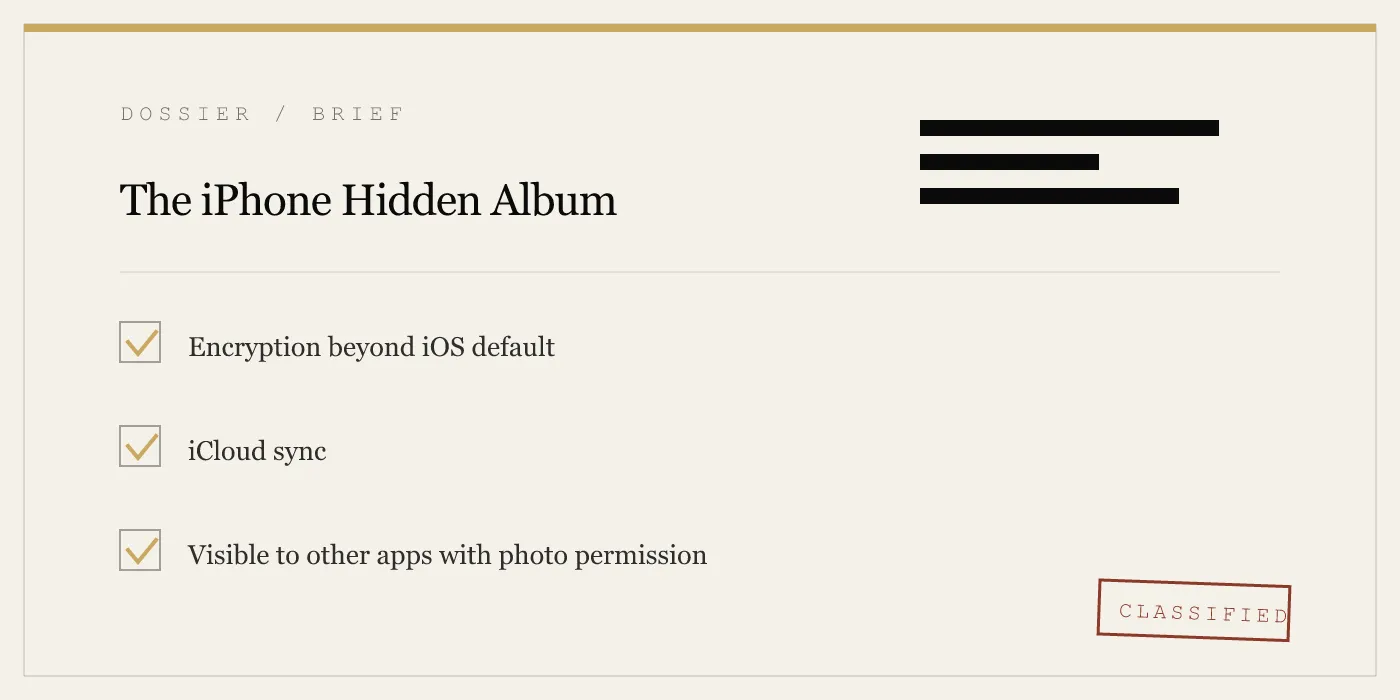
Short answer: no, not for serious privacy. The iPhone Hidden Album is a Photos-app hiding feature with Face ID gating, not a separate encrypted compartment. This guide explains what the hidden folder on iPhone actually is, where hidden photos still appear, and when a real vault makes more sense.
UPDATED · 2026-07-22 · REVIEWED BY APP-VAULT
TL;DR
The iPhone Hidden Album is not a true secure folder. It hides photos from the main Photos views and can require Face ID to open, but hidden photos still live in your Photos library, still sync with iCloud Photos, and are not protected by a separate encryption layer. For casual privacy, it is acceptable. For sensitive documents, medical images, legal files, or travel-sensitive material, it is not enough.
What is the hidden folder on iPhone?
The hidden folder on iPhone is the Hidden album inside Apple’s Photos app.
If you are searching for “hidden album iPhone”, “iPhone hidden album”, “secret folder on iPhone”, or “secret folder in iPhone”, this is the feature people mean. Apple lets you select a photo or video, tap Hide, and move it out of the main library views into a separate album called Hidden.
That sounds more private than it really is.
The Hidden album is a UI feature. It changes where Photos shows the file. It does not create a separate encrypted vault for that file.
How to find the Hidden album on iPhone
In Photos:
- Open Photos
- Tap Albums
- Scroll down to Utilities
- Tap Hidden
On iOS 16 and later, Apple asks for Face ID, Touch ID, or device passcode before opening it.
How to hide a photo on iPhone
- Open Photos
- Select the photo or video
- Tap the More button or the Share sheet, depending on the screen
- Choose Hide
- Confirm
Apple then removes that item from the main Photos views and places it in the Hidden album.
Is Apple Hidden Album safe?
Short answer: safe enough for casual privacy, not safe enough for sensitive material.
If your goal is simply to keep a photo from appearing while you scroll your library in front of someone else, the Hidden album works. If your goal is to create a genuinely separate secure folder on iPhone, it does not.
Here is the cleanest way to think about it:
| Question | Hidden Album answer |
|---|---|
| Hides photos from main library views | Yes |
| Locks the folder with Face ID / Touch ID / passcode | Yes, on modern iOS |
| Stores files in a separate encrypted compartment | No |
| Stops iCloud Photos sync | No |
| Stops other approved photo apps from seeing the files | No |
| Hides the existence of the folder by default | No |
The main mistake people make is assuming hidden means encrypted separately. It does not.
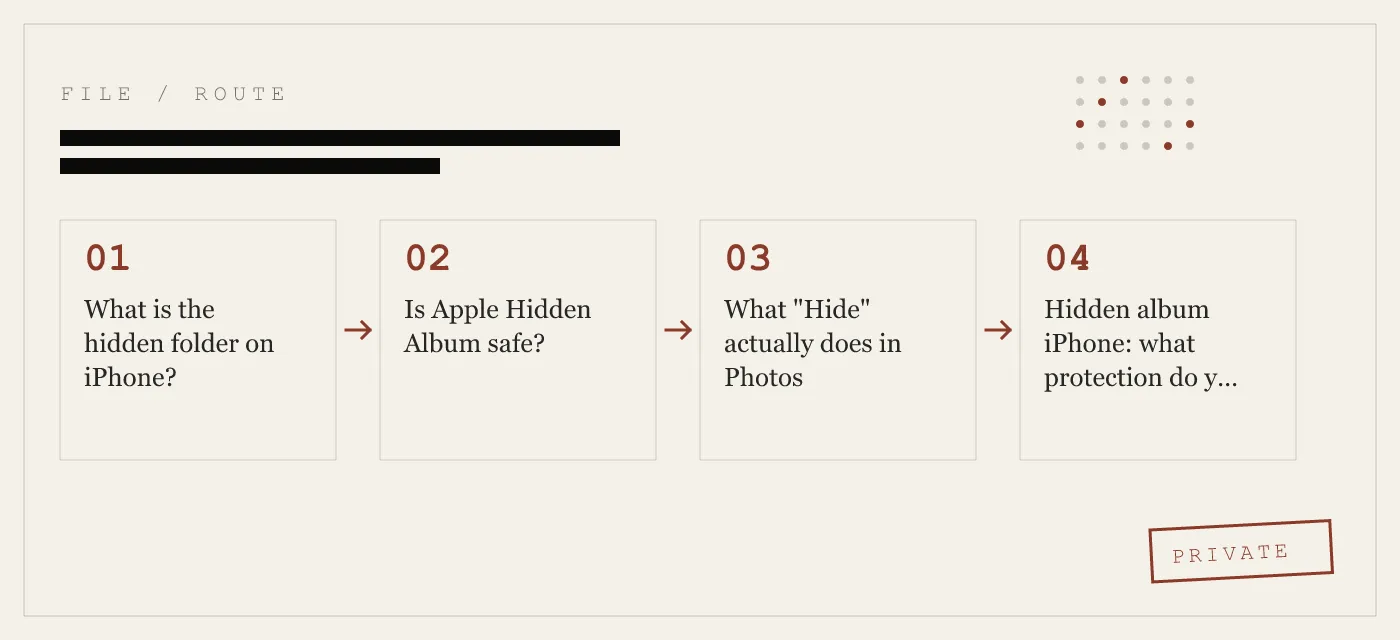
What “Hide” actually does in Photos
When you hide a photo on iPhone, three practical things happen.
1. Apple marks the photo as hidden
The photo gets a hidden attribute in the Photos library. It is still the same photo in the same broader library system.
2. The photo disappears from the main Photos views
It no longer appears in the standard library surfaces such as the main camera-roll style views and related default browsing areas in Photos.
3. The photo appears in the Hidden album
The file is still accessible in a dedicated place: Albums → Hidden.
That is the whole mechanism. No second vault. No separate app sandbox. No extra cryptographic layer placed around that item alone.
Hidden album iPhone: what protection do you actually get?
Apple does provide some protection.
Face ID protection helps
On iOS 16 and later, the Hidden album can require Face ID, Touch ID, or passcode to open. This is useful. It raises the bar for a casual person holding your phone.
Hiding the folder from the album list helps too
You can also remove the visible Hidden album from the Albums list.
Go to:
Settings → Apps → Photos → turn off Show Hidden Album
On some iOS versions, the path is:
Settings → Photos → turn off Show Hidden Album
This matters because otherwise a person can scroll through Albums, see a folder literally named Hidden, and know you have photos there even if they cannot open it immediately.
iPhone secret folder: where the Hidden album still falls short
If you are really looking for an iPhone secret folder, this is where Apple’s built-in option disappoints. Hidden photos still remain part of your normal photo ecosystem in several important ways.
The five places hidden photos still matter
1. iCloud Photos and your other Apple devices
Hidden photos still sync through iCloud Photos.
Hide a photo on iPhone, and it shows up as hidden on the other devices connected to the same photo library. That includes iPad, Mac, and the web interface tied to that library. Hidden is a status on the photo, not a separate local-only vault.
2. The Hidden album itself
By default, the Hidden album is visible in Photos → Albums. Even with Face ID gating, the existence of the folder tells an observer there is protected content.
For many people, that alone is enough to make the feature feel less private than expected.
3. Other apps with photo permission
If you have granted an app access to your Photos library, hidden items are still part of that library. The Hidden flag is not the same thing as isolating the files from other approved apps.
That is one of the biggest structural limits of the feature. A hidden photo is still a photo-library photo.
4. Search and indexing limits
Apple’s own Photos experience generally respects the Hidden status in ordinary viewing flows, but hidden is still a UI rule, not a strong system boundary. We would not rely on it as a guarantee that the item is isolated from every search or indexing path that can touch your photo library.
5. Backups and restores
If your photo library is part of your Apple backup and sync world, the hidden state travels with it. Again, this is because the photo is not moved into a separate sealed container. It stays in your library, just marked hidden.
Is the hidden album encrypted?
Not in the way most people mean.
Your iPhone already uses platform-level protection for device data at rest. The Hidden album benefits from that because it is part of the phone’s normal storage model. But the Hidden album is not a separately encrypted vault inside Photos.
A better phrasing is:
- iPhone storage protection: yes, like the rest of your device data
- Separate encryption just for hidden photos: no
That distinction is why “is Apple Hidden Album safe” and “is the Hidden Album encrypted” are not the same question. The answer to the first is “sometimes, for light privacy.” The answer to the second is “not as a separate vault.”
When the Hidden album is enough
We think the built-in Hidden album is reasonable for a narrow job:
- Keeping a photo out of sight while showing someone your library
- Removing clutter from the main Photos view
- Hiding mildly private screenshots or drafts
- Reducing shoulder-surfing risk on a shared family device
If discovery would be awkward but not damaging, Apple’s feature is often enough, especially if you also disable Show Hidden Album.
When the Hidden album is not enough
The Hidden album becomes the wrong tool when the consequence of exposure is real.
Identity documents
Passport scans, driver’s licenses, insurance cards, tax documents, and similar records are exactly the kind of files most people should not leave inside the normal Photos library, hidden or not.
Medical and legal material
Medical photos, legal records, signed documents, and work-sensitive images need stronger separation than a Hidden flag.
Financial screenshots and recovery information
Account screenshots and sensitive financial records are poor candidates for a feature that still keeps them in the ordinary photo library.
Travel, customs, and device-sharing scenarios
If someone manually scrolls through your phone during travel or on a shared device, the Hidden album is not a robust answer. Even with the folder hidden from view, the underlying design is still “photo in library, marked hidden” rather than “file moved into a separate encrypted container.”
If you want a real secure folder on iPhone
A true secure folder on iPhone has to do something Apple’s Hidden album does not: move the file out of the normal Photos library into a separate encrypted container.
That is the difference between a convenience feature and a vault.
How App-Vault differs from the Hidden album
App-Vault stores photos, videos, and documents in an on-device AES-256-GCM encrypted container. The key is derived from a 5×5 pattern using PBKDF2-SHA256, and key wrapping uses the iPhone Secure Enclave. Without the exact pattern, the vault container is intended to be mathematically indistinguishable from random data.
Just as important for this specific article:
- Vault contents stay on the device
- The vault is excluded from iCloud Backup
- The vault is also excluded from iTunes/Finder backups
- There is no account
- App-Vault operates no server that holds vault contents
That makes it a different class of tool from Apple’s Hidden album.
Privacy features the Hidden album cannot offer
App-Vault can also add features that Apple’s Photos app does not try to provide:
| Feature | Hidden Album | App-Vault |
|---|---|---|
| Separate encrypted container | No | Yes |
| Removed from normal Photos library | No | Yes |
| Excluded from iCloud Backup | No | Yes |
| Pattern-based vault unlock | No | Yes |
| Calculator Launcher | No | Yes |
| Decoy Vault | No | Yes |
For shared family devices, customs and border travel, journalism, legal, or medical work, or simply handing your phone to other people often, that structural difference matters more than any UI hide toggle.
Hidden Album vs App-Vault vs Photok vs Keepsafe
If you are comparing ways to create a secret folder on iPhone, the key question is not branding. It is architecture.
| Option | In Apple Photos library | Separate encrypted container | iCloud-backup exclusion stated here | Visible as a standard album in Photos |
|---|---|---|---|---|
| Apple Hidden Album | Yes | No | No | Yes, unless you disable Show Hidden Album |
| App-Vault | No | Yes | Yes | No |
| Photok | Not established on this page | Not established on this page | Not established on this page | Not established on this page |
| Keepsafe | Not established on this page | Not established on this page | Not established on this page | Not established on this page |
We are being deliberate here. This guide is about understanding the limits of Apple’s Hidden album. If you are choosing between third-party vaults, the first thing to verify is whether the app actually moves files into a separate encrypted container and what happens to backups, recovery, and unlock.
How to make the Hidden album as private as possible
If you want to keep using Apple’s built-in hidden folder on iPhone, do these basics:
1. Hide the Hidden album itself
Go to:
Settings → Apps → Photos → Show Hidden Album → Off
This removes the visible folder from the Albums list.
2. Keep Face ID or passcode protection enabled
In Photos settings, keep the Hidden album authentication enabled. That does not turn it into a vault, but it does stop quick casual access.
3. Remove truly sensitive files from Photos entirely
If a file would cause serious harm if exposed, do not leave it in Photos at all. Move it to a dedicated vault designed for that purpose.
4. Remember Recently Deleted
If you delete a hidden photo, it may still live in Recently Deleted under Apple’s normal retention behavior. Check that album too.
The honest answer to “iphone hidden album safe?”
For light privacy, yes.
For actual secrecy, no.
The iPhone Hidden Album is best understood as a hide-from-view feature, not a secure folder. It is useful when you want a photo out of the main library and behind a Face ID check. It is not sufficient when you need the file removed from the normal photo library, kept out of iCloud backup flows, and sealed in a separate encrypted compartment.
That is the dividing line.
Sources
- Apple Support: Hide and show photos on iPhone
- Apple Support: Use Screen Time on iPhone
- Apple Platform Security guide: Data protection overview
- Apple Developer: App Privacy details on the App Store
- NIST FIPS 197: Advanced Encryption Standard
DIAGRAM · 02
DOSSIER
QUESTIONS
11 sharp answers.
-
01 Is the iPhone Hidden Album encrypted?
The Hidden Album uses the same iPhone and iCloud protection your normal photo library uses; it is not a separately encrypted vault. The Hidden album is a Photos feature, not an extra encryption layer around selected files. -
02 Is Apple Hidden Album safe?
Apple Hidden Album is safe for casual privacy, not for serious secrecy. It keeps photos out of the main library views and can require Face ID to open, but the files still stay in your photo library and still sync across iCloud Photos. -
03 What is the hidden folder on iPhone?
The hidden folder on iPhone is the Hidden album inside the Photos app. When you hide a photo, Apple removes it from the main views and places it in that separate album under Albums. -
04 Can someone find photos in the Hidden Album just by scrolling through my Photos app?
Yes. By default, the Hidden album appears in the Albums tab as a folder named Hidden, so a person using your phone can see that it exists. On iOS 16 and later they must authenticate with Face ID, Touch ID, or passcode to open it, but the folder itself is still visible unless you hide it from the album list. -
05 How do I hide the Hidden Album itself so it does not appear in the album list?
In iPhone Settings, go to Settings → Apps → Photos and turn off Show Hidden Album. On some iOS versions the path appears as Settings → Photos → Show Hidden Album. This removes the folder from the Albums list, but it does not change how the files are stored. -
06 If I hide a photo, does it still sync to iCloud Photos?
Yes. Hidden photos still sync to iCloud Photos and appear as hidden on your other Apple devices using the same photo library. -
07 Is there a secret folder on iPhone built into iOS?
Yes, but only in the limited sense of the Hidden album. iPhone does not include a true secret folder with separate on-device encryption for selected photos inside the Photos app. -
08 Does Spotlight search find hidden photos?
Hidden photos are generally excluded from the Photos app's own normal search surfaces, but the Hidden flag is not the same thing as isolation from the rest of iOS. It should not be treated as a reliable barrier against every other app or index on the device. -
09 Is the Hidden Album protected by Face ID?
Yes, on iOS 16 and later. Face ID, Touch ID, or passcode protects opening the Hidden album in Photos, but the protection applies to the folder view in Photos rather than creating a separate encrypted container. -
10 If I delete a hidden photo, is it really deleted?
Not immediately. A deleted hidden photo goes to Recently Deleted, where it can be recovered until permanent removal under Apple's normal Photos behavior. -
11 What about photos shared in iMessage, AirDrop, or social apps — are they hidden too?
No. Hiding a photo only changes how that item appears inside Photos. Copies or attachments in messages, received files, drafts, or other apps are unaffected.
RELATED DOSSIERS
Keep reading.
9 ENTRIES
- LINK / 01 · PRODUCT
App-Vault Photo Vault
A real encrypted compartment, on the same device.
- LINK / 02 · PRODUCT
Calculator Launcher
A home-screen disguise the Hidden Album cannot offer.
- LINK / 03 · CRYPTOGRAPHY
AES-256-GCM stack
How a real photo encryption stack is built.
- LINK / 04 · CONCEPT
Zero-knowledge architecture
Why Apple's default sync model is not zero-knowledge.
- LINK / 05 · COMPARE
App-Vault vs Keepsafe
Two third-party answers to the Hidden Album's shortcomings.
- LINK / 06 · GUIDE
More guides
How to hide photos, lock albums, wipe before selling.
- LINK / 07 · GUIDE
How to Password Protect Photos on Your iPhone: 3 Methods That Actually Work
Three ways to password protect photos on iPhone: Hidden Album with Face ID, Screen Time passcode, and dedicated vault apps. Plus the limits of each.
- LINK / 08 · GUIDE
PBKDF2 Explained: The Password-Based Key Derivation Function That Secures Your Vault
What is PBKDF2? How it works, why direct hashing fails, the OWASP 2026 recommendation of 600,000 iterations, and how it compares to Argon2id, bcrypt, and scrypt.
- LINK / 09 · GUIDE
How to Recover Deleted Photos on iPhone
Step-by-step guide to recovering deleted iPhone photos from Recently Deleted, iCloud, backups, and third-party tools. Plus how to stop losing them.
GET STARTED
Seal the vault.
Free to download. The free tier holds one file. Premium removes the limit — Weekly from $3.99 or Yearly from $29.99 with a 7-day free trial.