FILE G5 / PRE-SALE PRIVACY CHECKLIST
How to Permanently Delete Photos Before Selling or Trading In Your iPhone
Selling or trading in an iPhone feels routine until you remember what's still on it. Deleted photos are not gone. iOS keeps them in a "Recently Deleted" album for 30 days, and even after that, the underlying data can persist on the storage medium. This guide walks through what actually happens when you delete a photo, why a factory reset alone is not enough for sensitive material, and how to combine App-Vault's File Shredder with a clean iOS reset to leave nothing recoverable behind.
UPDATED · 2026-05-16 · REVIEWED BY APP-VAULT
TL;DR
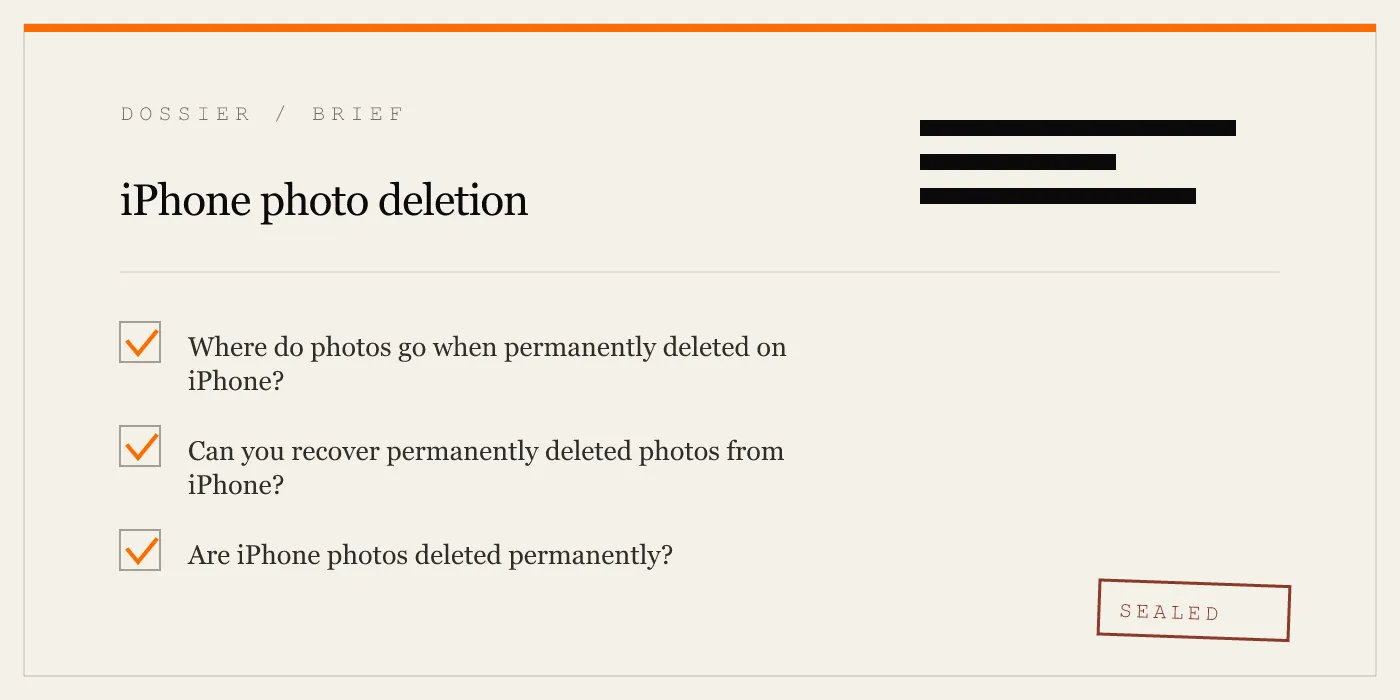
Deleting a photo on iPhone moves it to a 30-day holding album. Emptying that album removes the file reference but does not overwrite the data on the NAND flash. A factory reset encrypts the volume and discards the key, which is effective against casual recovery — but for sensitive photos, overwriting the data before the reset adds a meaningful layer of protection. App-Vault's File Shredder writes random data over each file before deletion, and the app's AES-256-GCM encryption means that even raw NAND access yields only ciphertext. The full checklist: shred sensitive files in App-Vault, delete and empty Recently Deleted in Photos, sign out of iCloud, erase all content and settings, and verify the device boots to the Hello screen.
What “Delete” Actually Means on iPhone
Tap the trash icon on a photo and iOS does not erase anything. It moves the file to the Recently Deleted album, where it sits for 30 days — fully visible, fully recoverable, still consuming storage. This is a safety net, not a security feature.
Open Photos, go to Albums, scroll to Recently Deleted, tap “Delete All” — now the file-system reference is gone. The photo no longer appears anywhere in the interface. But the data itself remains on the iPhone’s NAND flash storage. iOS marks those blocks as available for reuse. Until the storage controller writes new data into those exact blocks, the old photo data is physically present on the device.
This is not a theoretical concern. Forensic tools used by law enforcement and data recovery services routinely extract files from unreused NAND blocks on iPhones that have been “fully deleted” by their owners. The process is more difficult on modern iPhones than on older models, but the data is there until it is overwritten or the encryption key is destroyed.
Why Hardware Encryption Changes the Equation
Every iPhone since the 3GS encrypts the NAND flash at the hardware level. The encryption key is tied to the device’s unique UID, fused into the processor at manufacture and never exposed to software. When you perform a factory reset (“Erase All Content and Settings”), iOS does not overwrite every block — it destroys the file-system encryption key hierarchy. Without those keys, the data on the NAND is computationally infeasible to decrypt.
For the vast majority of sellers, a factory reset is sufficient. The data is mathematically locked behind a key that no longer exists.
But “computationally infeasible” is not “physically impossible.” A nation-state adversary with electron microscope access to the NAND chip could, in theory, read raw ciphertext directly. The probability is low. The consequence of failure — if the photos in question are medical records, legal documents, or journalistic source material — may be high enough to justify one more step.
That step is overwriting the data before the reset.
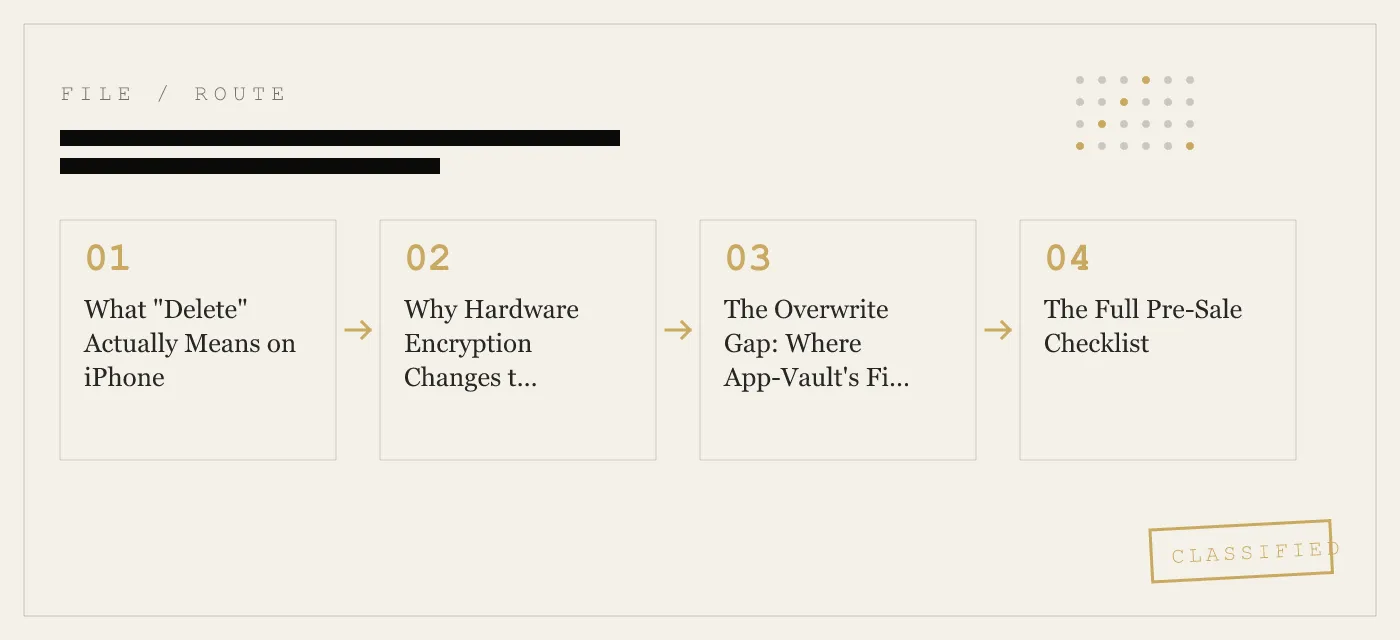
The Overwrite Gap: Where App-Vault’s File Shredder Fits
iOS provides no built-in tool to overwrite deleted file blocks. Once you empty Recently Deleted, those blocks sit untouched until the OS reuses them. If you sell the iPhone the next day, the blocks are almost certainly still intact.
App-Vault’s File Shredder addresses this gap for files already inside the vault. Before deleting a file, the shredder writes random data over its storage blocks, then removes the file reference. The original content is replaced with noise. Even a forensic NAND read recovers only the random overwrite data, not the original photo.
The shredder operates within App-Vault’s encrypted vault. Photos that are still in the iOS Photos app need to be moved into App-Vault first — imported via the app’s file picker — then shredded. This is an extra step, but it is the only way to guarantee that specific files are overwritten rather than merely dereferenced.
Files inside App-Vault are encrypted with AES-256-GCM using a unique 96-bit nonce per file. The encryption key is derived from the user’s pattern via PBKDF2-SHA256 at 600,000 iterations, then wrapped by a key generated inside the iPhone’s Secure Enclave. Even without the overwrite step, raw NAND access yields only ciphertext. The overwrite step ensures that the ciphertext itself is gone.
The Full Pre-Sale Checklist
Follow these steps in order. Skipping a step leaves a gap.
1. Move Sensitive Photos into App-Vault
Open App-Vault. Use the import function to pull photos and videos from the iOS Photos app into the encrypted vault. This covers the material you are most concerned about — the files that would cause real harm if recovered by a stranger.
If you use App-Vault’s Calculator Launcher as your primary access method, the vault is already separated from the Photos app in both interface and storage. Moving files in is a deliberate act, which means you know exactly what is inside.
2. Shred the Files
Inside App-Vault, select the imported photos and run the File Shredder. The app writes random data over each file’s storage blocks, then deletes the encrypted file reference. This takes a few seconds per file depending on size.
After shredding, the files are gone from the vault. They are not in Recently Deleted. They are not in any album. The blocks that held them now contain random data.
3. Delete Remaining Photos from the iOS Photos App
Go through the Photos app and delete everything else you do not want the next owner to see. This includes screenshots, downloaded images, and any photos that were never moved into App-Vault.
Tap Select, choose the photos, tap the trash icon. Then navigate to Albums → Recently Deleted → Delete All. This removes the file-system references. The data remains on the NAND, but it will be rendered inaccessible by the factory reset in step 6.
4. Sign Out of iCloud and Apple ID
Go to Settings → [your name] → Sign Out. Enter your Apple ID password and choose to remove iCloud data from the device. This disconnects the iPhone from your iCloud account, including iCloud Photos, iCloud Drive, Keychain, and Find My.
If iCloud Photos is enabled, your full photo library lives on Apple’s servers. Signing out removes the local copies but does not touch the cloud library. If you want the cloud library deleted as well, manage that separately at icloud.com before signing out.
5. Erase All Content and Settings
Go to Settings → General → Transfer or Reset iPhone → Erase All Content and Settings. Enter your passcode and Apple ID password when prompted. The device will reboot, destroy the file-system encryption key hierarchy, and present the Hello setup screen.
This is the step that makes the remaining data on the NAND flash computationally inaccessible. Without the encryption keys, the raw data is noise.
6. Verify the Hello Screen
After the reset completes, the iPhone should display the “Hello” setup screen in multiple languages. If it does, the reset was successful. If it boots to the lock screen or home screen, something went wrong — repeat step 5.
Do not set up the device again. The next owner will do that.
What About iCloud Backups?
If you have iCloud Backup enabled, a copy of your photo library — including photos you deleted from the device — may exist in your iCloud backup. The factory reset does not touch this.
Before selling the phone, go to Settings → [your name] → iCloud → Manage Storage → Backups. Select the device backup and either delete it or disable Photos in the backup scope. This ensures that even if someone gains access to your iCloud account later, the backup does not contain the photos you thought you deleted.
App-Vault’s own encrypted iCloud Backup is opt-in and uses a separate per-device backup key. If you enabled it, the backup on Apple’s servers is ciphertext. App-Vault cannot decrypt it — that is the point of the zero-knowledge architecture. But if you are decommissioning the device entirely, delete the App-Vault backup from iCloud as well.
What This Process Does Not Protect Against
Honesty about limits is a feature, not a weakness.
iCloud server-side data. This guide covers the device. If your photos synced to iCloud, they exist on Apple’s servers until you delete them there. The factory reset does not reach across the internet.
Screenshots and cached thumbnails. Some apps generate their own thumbnail caches outside the Photos app. A factory reset clears these, but if you are concerned about a specific app’s cache, delete the app before the reset.
Physical NAND forensics on unshredded files. If you deleted photos from the iOS Photos app without shredding them first, and you perform the factory reset immediately, the raw data may still be on the NAND. The encryption key is gone, so the data is ciphertext — but it is ciphertext that could, in extreme threat models, be targeted for brute-force or side-channel attacks. The shredder eliminates this vector for files inside App-Vault.
The threat model page covers App-Vault’s defensive boundaries in detail. Read it before deciding whether this process matches your risk level.
How This Compares to Other Vault Apps
Most photo vault apps on the App Store — Keepsafe, Private Photo Vault, HideX — store files in their own sandboxed container. Deleting the app removes the container. Whether the underlying data is overwritten depends on the app’s implementation, and most do not publish their overwrite behavior.
Keepsafe is the category leader by install count; the full feature-by-feature breakdown is on App-Vault vs Keepsafe. Vaultaire is the closest architectural competitor; see App-Vault vs Vaultaire.
App-Vault is the only iPhone vault app that publishes its full cryptography stack — AES-256-GCM, PBKDF2 at 600,000 iterations, Secure Enclave key wrapping — with primary-source citations, and pairs it with a file shredder that overwrites data before deletion. If the question is “how do I permanently delete photos from my iPhone before selling it,” the answer is not just “use a vault app.” The answer is “use a vault app that encrypts, overwrites, and lets you verify every layer.”
The Bottom Line
Deleting a photo on iPhone is not the same as destroying it. The Recently Deleted album is a 30-day grace period. Emptying it removes the reference, not the data. A factory reset destroys the encryption keys, which is effective against any realistic recovery attempt. For sensitive material, overwriting the data first — using App-Vault’s File Shredder — closes the last gap.
The full process takes 15 to 30 minutes. The cost of skipping it is handing a stranger a device that may still contain your medical records, your legal documents, or your private photos — even if you are certain you deleted them.
DIAGRAM · 03
DOSSIER
QUESTIONS
8 sharp answers.
-
01 Does deleting photos on iPhone free up storage immediately?
No. Deleted photos sit in Recently Deleted for 30 days and still consume storage. Empty the album to reclaim space. -
02 Can someone recover my photos after I sell my iPhone?
If you only used the built-in delete function, a forensic tool could potentially recover data from unused NAND blocks. A factory reset makes this significantly harder by discarding the encryption key. Overwriting the data first (via App-Vault's File Shredder) removes even that possibility. -
03 Is a factory reset enough to protect my photos?
For most people, yes. iOS uses hardware-level encryption; a reset destroys the key, rendering the data mathematically inaccessible. For sensitive material — legal documents, medical records, journalistic source photos — overwriting before reset adds a defensible extra layer. -
04 How do I permanently delete photos from iPhone before selling it?
Follow the full checklist in this guide: shred sensitive files in App-Vault, delete and empty Recently Deleted, sign out of iCloud, erase all content and settings, and verify the Hello screen appears. -
05 What happens to photos in iCloud when I erase my iPhone?
If iCloud Photos is enabled, your library lives on Apple's servers, not just the device. Erasing the iPhone removes the local copies but does not delete the iCloud library. Sign out of iCloud and manage the library separately at icloud.com. -
06 Can I get back permanently deleted photos on iPhone?
Not through iOS itself. The Recently Deleted album is the only built-in recovery window. After that, data recovery requires third-party forensic tools and is not guaranteed. -
07 Does App-Vault's File Shredder work on photos already in the Photos app?
No. The File Shredder operates on files inside App-Vault's encrypted vault. Move sensitive photos into App-Vault first, then shred them before the factory reset. -
08 How long does it take to permanently delete photos before selling an iPhone?
The full process — moving files to App-Vault, shredding, deleting from Photos, emptying Recently Deleted, signing out of iCloud, and resetting — takes roughly 15 to 30 minutes depending on library size.
RELATED DOSSIERS
Keep reading.
9 ENTRIES
- LINK / 01 · Calculator Launcher
Discreet vault access via a working iOS calculator
Fully functional calculator with a long-press equals-key shortcut into the encrypted vault. Built to satisfy Apple guideline 4.3.
- LINK / 02 · Decoy Vault
A second pattern that opens a separate album
Two mathematically independent vault catalogs behind two different 5×5 patterns on the same device.
- LINK / 03 · Pattern Lock
How App-Vault's 5×5 grid generates encryption keys
The pattern is not a password — it seeds PBKDF2 key derivation with 600,000 iterations and a per-install salt.
- LINK / 04 · AES-256-GCM
The cryptography stack inside App-Vault
Unique 96-bit nonce per file, hardware-bound keys via the Secure Enclave, zero network calls.
- LINK / 05 · Zero-Knowledge
What App-Vault cannot see or recover
No servers, no account, no password reset. If you lose the pattern, the vault stays sealed.
- LINK / 06 · Threat Model
What App-Vault defends against — and what it doesn't
- LINK / 07 · GUIDE
App Lock iPhone: what actually works
Need an app lock on iPhone. We explain iOS options, their limits, and when an encrypted vault is the only setup that truly isolates files.
- LINK / 08 · GUIDE
Best iPhone Photo Vault Apps 2026
Compare the best photo vault app for iPhone by encryption, key storage, offline use, and subscription model, including App-Vault, Keepsafe, and Vaultaire.
- LINK / 09 · GUIDE
Calculator Vault iPhone Guide
Best calculator vault iPhone guide for 2026: how calculator photo vault apps work, what iOS allows, and what to check before trusting one.
GET STARTED
Seal the vault.
Free to download. The free tier holds one file. Premium removes the limit — Weekly from $3.99 or Yearly from $29.99 with a 7-day free trial.