FILE G1 / PRIVACY GUIDE
How to Lock Photos on iPhone Without Getting Fooled by Half-Protection
Locking photos on an iPhone looks simple — toggle a switch, set a password. The reality is more layered. Apple provides two built-in protections that cover separate threat models, and third-party app vaults close gaps that neither one addresses. Here is how each method works, what each leaves exposed, and where the weakest link actually lives.
UPDATED · 2026-05-16 · REVIEWED BY APP-VAULT
TL;DR
You can lock photos on iPhone using the Hidden Album (Face ID/Touch ID required to view, iOS 16+), Screen Time content privacy restrictions (passcode required), or a dedicated app vault. Hidden Album is the simplest but leaves thumbnails searchable and does not prevent deletion. Screen Time blocks the Photos app entirely but is heavy-handed. App vaults like App-Vault encrypt individual files with AES-256-GCM, remove metadata, and provide calculator or decoy surfaces to avoid attention. No single method defends against every threat — your threat model dictates which to use.
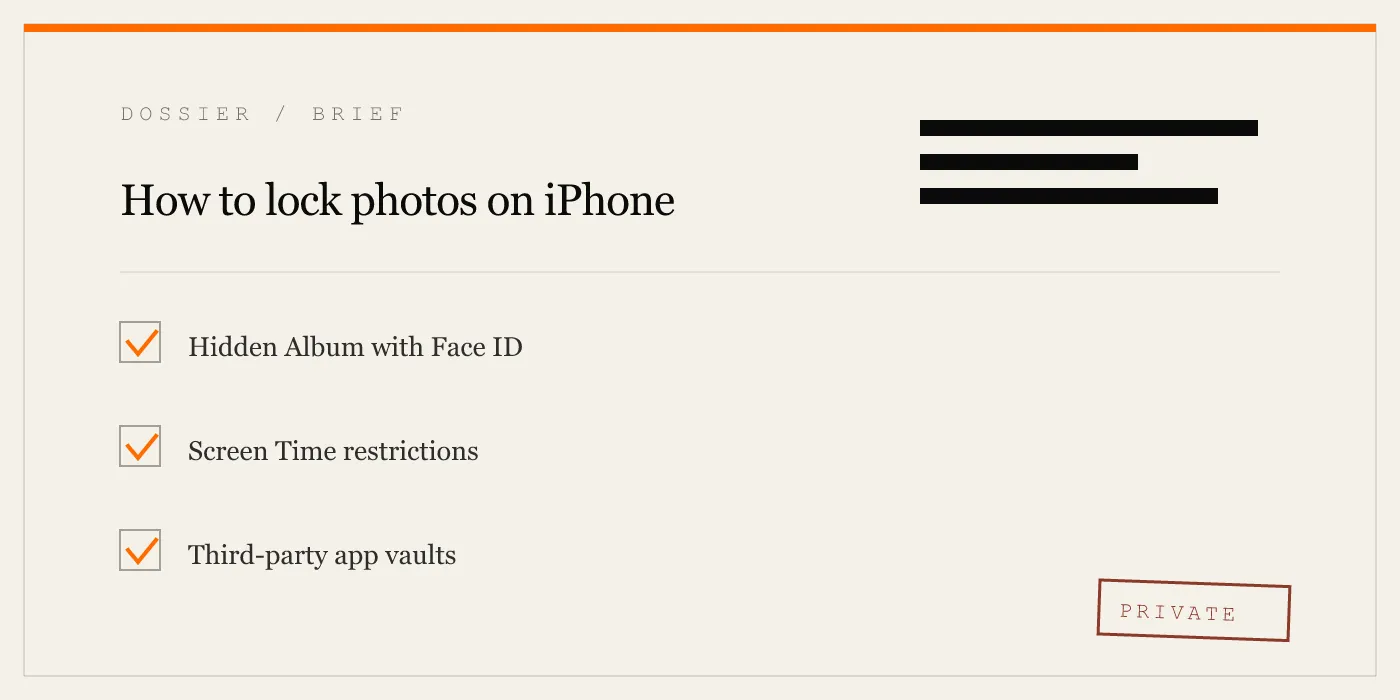
Three ways exist to lock photos on an iPhone. Each protects against a different person holding the phone — and each leaves a different door unlocked. The Hidden Album keeps casual snoopers out but leaves digital fingerprints in Spotlight. Screen Time can block the entire Photos app but treats all 10,000 photos the same. Third-party vault apps encrypt individual files but require trusting a developer who does not answer to Apple.
The right choice depends on whom you are locking them from and under what circumstances the phone will be unattended.
The Hidden Album — Apple’s Native Protection
Since iOS 16, the Hidden Album in the Photos app can require Face ID, Touch ID, or the device passcode to view. To enable it: go to Settings > Photos, then toggle “Use Face ID” under Hidden Album. Once on, hidden photos are no longer visible in the main library — they live in a separate folder that demands biometry before displaying contents.
This is the simplest method to lock photos on iPhone. It requires no extra app, no separate password to remember, and no configuration beyond one switch.
But the Hidden Album is not encrypted. The photos remain on the file system in the same Apple-managed database as every other photo. The lock is a software gate — it checks your face before rendering thumbnails. An app that requests access to the full photo library via PHPhotoLibrary does not respect the hidden flag. Any app with photo library permission can enumerate all assets, including hidden ones. Spotlight search will show hidden photos in results unless you disable Siri & Search for Photos in Settings.
Worse: hidden photos can be deleted from the Recently Deleted folder without requiring Face ID. Anyone who unlocks your phone and opens the Recently Deleted album sees a “Delete All” button. Once deleted, they are gone from the device (though still recoverable from iCloud for 30 days if backup is on).
The Hidden Album is a privacy filter, not a security boundary. It works against someone who picks up your phone for a minute. It does not work against someone who spends an hour with it or who installs a third-party gallery app.
Screen Time — Blocking the Entire Photos App
Screen Time provides a different mechanism: block the Photos app entirely. Navigate to Settings > Screen Time > Content & Privacy Restrictions > Allowed Apps, then toggle Photos off. The app disappears from the Home Screen and cannot be opened. To re-enable it, you need the Screen Time passcode.
This method locks all photos at once. It prevents anyone from viewing, sharing, or deleting any photo unless they know the Screen Time passcode. It is effective against the same casual snooper, but it also bars you from showing photos to a friend — you would have to turn off the restriction first.
Screen Time does not encrypt the photo files either. They remain on disk, readable by any process running as the mobile user — which includes background daemons and apps with extended entitlements. A malicious app that has obtained photo library access (via user permission) can still copy photos out, even with the Photos app blocked by Screen Time. The restriction only stops the first-party app.
Screen Time also forces a hard line: all or nothing. You cannot lock individual albums or photos. If you need to keep a handful private while the rest remain accessible, this method is too blunt.
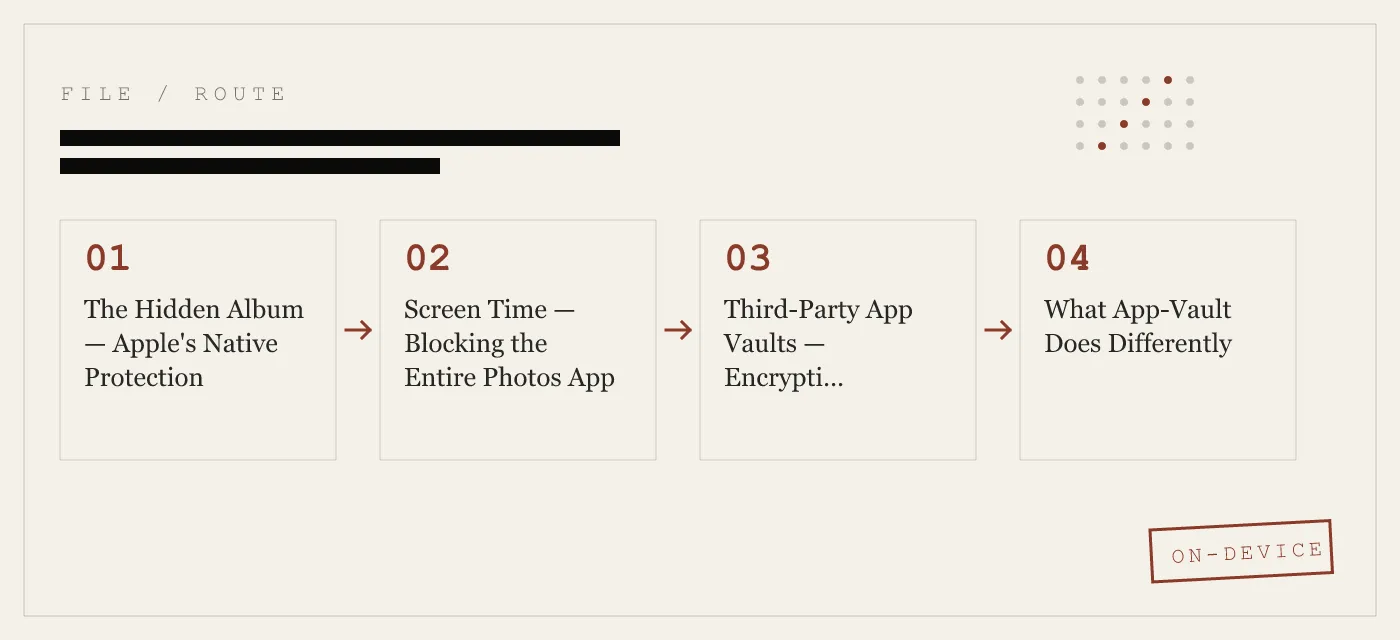
Third-Party App Vaults — Encryption Between You and the OS
App vaults fill the gap that neither Hidden Album nor Screen Time covers. They take selected photos out of the system Photos library entirely and store them inside an encrypted container. The app itself is locked behind a password, pattern, or biometry. Even if someone unlocks your phone, they cannot open the vault without the vault secret.
The key architectural difference is encryption. The photos are not just hidden — they are scrambled with a cipher whose key is derived from the vault passcode. On an iPhone, that key can be further wrapped by the Secure Enclave, meaning the decryption key never leaves the chip. Apple’s own security guide confirms that the Secure Enclave cannot be accessed by the application processor.
App vaults also strip or isolate the photos from iOS’s sharing sheets, background indexing, and metadata extraction. A photo inside a proper vault does not appear in search, in the share menu, or in any app’s image picker.
The trade-off is trust. You are giving a third-party developer access to your sensitive files. The app must be well-architected to not leak data, not phone home, and not crash. App-Vault, for example, publishes its full cryptography stack: AES-256-GCM with a unique 96-bit nonce per file, PBKDF2-SHA256 with 600,000 iterations, Secure Enclave wrapping, and zero network access by default. No account, no telemetry, no third-party SDKs. The privacy nutrition label declares no data collected.
What App-Vault Does Differently
App-Vault introduces two design choices that matter for real-world use: the Calculator Launcher and the Decoy Vault.
The calculator is a fully functional iOS calculator. To someone glancing at the home screen, it looks like any other calculator. You open it, you do math. But a long-press on the equals key triggers a shortcut to the vault. This surface passes Apple guideline 4.3 (alternate icons) because the calculator is genuine — not a fake front for an empty shell.
The Decoy Vault lets you set up a second, independent vault with its own pattern. When you are forced to open the vault, you enter the decoy pattern, which reveals a separate set of photos — harmless ones. The real files remain sealed behind the primary pattern. This is useful when one physical device serves more than one person, or when compliance pressure is a real threat.
Both features are optional. The core encryption runs regardless.
Choosing the Right Method for Your Threat Model
The method you choose should match the person you are locking photos from.
-
Family sharing a phone or iPad: Hidden Album with Face ID is enough to keep your spouse or kids from accidentally swiping into your private shots. It fails if they are technically curious and own a USB-C drive.
-
Lent phone to a friend for a group photo: The friend will not try to bypass Face ID. Hidden Album works. But if they open the Photos app and tap Albums, they might see a hidden album count in the sidebar — iOS shows the number of hidden photos unless you disable that in Settings.
-
Customs or border inspection: You cannot rely on Hidden Album. An officer can demand you unlock the phone and open Photos. Screen Time does not help if the officer asks for your passcode. A vault app with a decoy surface is the only defense that lets you comply while protecting the real data. The Decoy Vault gives you a plausible normal-looking album.
-
Journalist, lawyer, or medical professional: Your threat model includes state-level adversaries or litigation. You need the strongest encryption: AES-256-GCM, hardware-backed key storage, and no possibility of cloud recovery. You also need the app to be auditable — open source or at least published cryptography. App-Vault’s encryption page details every parameter.
-
Selling or trading in your iPhone: Factory reset is the simplest. But if you want to keep photos and prevent the next owner from accessing them, move them into an encrypted vault before wiping. Hidden Album is wiped with the phone.
The Cryptographic Layer
The difference between hiding and encryption is the difference between a drawn curtain and a locked safe. App-Vault uses AES-256 in Galois/Counter Mode — the same authenticated encryption standard specified in NIST FIPS 197 and NIST SP 800-38D. Each file gets a unique 96-bit nonce, preventing the same plaintext from ever producing the same ciphertext.
The encryption key is derived from your pattern using PBKDF2-SHA256 with 600,000 iterations — the OWASP recommended minimum for 2025. That derived key is then wrapped by a key generated inside the iPhone’s Secure Enclave. The Enclave key never leaves the chip. Even if an attacker obtains the vault file, they cannot decrypt it without both the correct pattern and access to your specific iPhone.
App-Vault makes zero network calls by default. No server could be compromised to leak files. Optional encrypted iCloud backup uses a separate per-device backup key so Apple receives only ciphertext.
Even the catalog — the list of file names, dates, and counts — is sealed. Someone with raw filesystem access cannot tell how many files are inside.
Limits No Method Covers
No method locks photos on iPhone against every attack. The strongest vault cannot stop a coerced password, a forensic extraction tool like Cellebrite that exploits kernel vulnerabilities, or a sophisticated malware implant with kernel-level access. App-Vault’s threat model page explicitly states what it does not defend against: state-backed forensics, jailbroken devices, or the moment you unlock the vault under duress.
What a vault does defend against is the most common threat: someone who has your unlocked phone for a period of minutes or hours, who does not have the resources to break AES-256 or extract keys from the Secure Enclave. That covers lost phones, lent phones, family sharing, and low‑skill border searches.
If your adversary has access to your device passcode and can install a spy‑grade keylogger, all bets are off. No app can protect you there.
The Practical Recommendation
Use the Hidden Album for everyday convenience — a quick lock that works when you hand your phone to a friend to show a picture. Enable Face ID for the Hidden Album; disable Siri & Search for Photos to block spotlight results.
Use Screen Time if you want to prevent deletion or access to the entire library by a child or an employee. Set a Screen Time passcode that is different from your device passcode.
Use a dedicated app vault like App-Vault for photos that must never be seen by anyone with physical access to your unlocked phone. The vault should encrypt, should stay off the network, and should give you a way to comply under pressure without exposing the real files.
No single method locks all photos perfectly. But stacking methods — Hidden Album for casual, vault for sensitive — covers the vast majority of real‑world situations.
Sources
- Apple Support: Hide and show photos on iPhone
- Apple Support: Use Screen Time on iPhone
- Apple Platform Security guide: Data protection overview
- Apple Developer: App Privacy details on the App Store
- NIST FIPS 197: Advanced Encryption Standard
DIAGRAM · 01
DOSSIER
QUESTIONS
10 sharp answers.
-
01 Can I lock photos on iPhone without an app?
Yes, using the Hidden Album combined with Face ID or Touch ID, or by applying Screen Time content restrictions to block the Photos app entirely. -
02 Does the Hidden Album really lock photos on iPhone?
It hides them from the main library and requires biometry to view, but no encrypted container protects them; thumbnails remain searchable and photos can be accessed by apps that query the media library without user interaction. -
03 How do I lock the Photos app on iPhone?
Use Screen Time: Settings > Screen Time > Content & Privacy Restrictions > Allowed Apps, then toggle Photos off. This hides and blocks the Photos app behind a Screen Time passcode. -
04 Is there a way to password protect photos on iPhone from other people?
The Hidden Album with Face ID is the native method. For stronger separation, a third-party app with independent encryption like App-Vault prevents any access without the vault password, even if the device is unlocked. -
05 Can I lock my entire photo gallery on iPhone?
Screen Time blocks the entire Photos app, but the photos remain on the file system and can be accessed by apps that bypass the block. True encryption requires a vault app. -
06 How do I lock hidden photos with Face ID on iPhone?
In Settings > Photos, enable 'Use Face ID' under Hidden Album. Hidden photos then require biometry to view. This feature requires iOS 16 or later. -
07 What is the best app to lock pictures on iPhone?
App-Vault offers AES-256-GCM encryption, Secure Enclave key wrapping, zero telemetry, and a calculator launcher surface. Compare with Vaultaire or Keepsafe for feature differences. -
08 Can I lock photos on iPhone before selling it?
A simple factory reset is safer. If you want to keep photos but prevent buyer access, remove them to a vault or encrypted backup, then wipe the device. Hidden Album does not persist after erase. -
09 How do I lock photos in an album on iPhone?
The Hidden Album is the only native album that supports biometry lock. For custom albums, you need a third-party vault that creates its own encrypted albums. -
10 Does locking photos with an app prevent iCloud backup?
Most vault apps, including App-Vault, offer opt-in encrypted iCloud backup: files are sealed with a separate per-device backup key so Apple receives only ciphertext.
RELATED DOSSIERS
Keep reading.
9 ENTRIES
- LINK / 01 · FEATURE
Calculator Launcher
Disguised entry point for your vault — fully functional iOS calculator, long-press equals key shortcut.
- LINK / 02 · FEATURE
Decoy Vault
Second independent vault accessible with a different pattern. One device, two personas.
- LINK / 03 · CRYPTO
AES-256-GCM Encryption
Each file encrypted with a unique nonce. The mathematics behind App-Vault's sealing.
- LINK / 04 · SECURITY
Threat Model
What App-Vault defends against and what it does not. Honest boundaries matter.
- LINK / 05 · COMPARE
App-Vault vs Keepsafe
Feature comparison against the category leader in app vaults.
- LINK / 06 · COMPARE
App-Vault vs Vaultaire
How the closest competitor compares on encryption, telemetry, and design.
- LINK / 07 · GUIDE
iCloud Encryption Explained — What Apple Protects, What It Does Not
iCloud encryption explained: standard vs Advanced Data Protection, which data Apple can read, which stays sealed, and where third-party vaults fit.
- LINK / 08 · GUIDE
Is Apple Hidden Album safe on iPhone?
Apple's Hidden album hides photos from view, but it is not a separate encrypted vault. See what it protects, what still syncs, and better options.
- LINK / 09 · GUIDE
How to Password Protect Photos on Your iPhone: 3 Methods That Actually Work
Three ways to password protect photos on iPhone: Hidden Album with Face ID, Screen Time passcode, and dedicated vault apps. Plus the limits of each.
GET STARTED
Seal the vault.
Free to download. The free tier holds one file. Premium removes the limit — Weekly from $3.99 or Yearly from $29.99 with a 7-day free trial.