FILE L4 / BEST OF · 2026
Best Photo Locker App for iPhone
If you are comparing a photo vault app for iPhone, this page answers the practical question first: which app is easiest to set up, easiest to use daily, and easiest to trust for ordinary privacy on a personal device.
UPDATED · 2026-07-22 · REVIEWED BY APP-VAULT
TL;DR
The best photo locker app for iPhone depends on what you mean by “best”: Private Photo Vault is fastest to set up, Keepsafe is familiar, and App-Vault is the strongest choice here if you want an iPhone app vault that hides in plain sight and keeps files on-device. This ranking is weighted toward onboarding speed and interface clarity, not pure cryptographic depth.
What this page measures
If you searched for best photo locker app for iPhone, photo vault app for iPhone, app vault for iPhone, or iPhone app vault, you are usually asking a simple question: which app can I install and trust without a long setup process.
That is what this page ranks.
We scored each app on four equally weighted factors:
- Onboarding time — how quickly a first-time user can get from install to first locked photo
- Account requirement — whether the app forces sign-up before basic use
- Screen count to first lock — how many decisions stand between you and a working vault
- Interface clarity — whether the flow feels obvious on current iOS
We did not rank this page mainly on cryptographic depth, audit status, or advanced threat-model claims. Those matter, and we cover them on the security-focused pages. Here, the goal is simpler: a vault a normal iPhone owner can set up fast and use without friction.
iPhone app vault vs Apple Hidden album
Before comparing apps, it helps to separate two different things people mean by “hide photos on iPhone.”
Apple Hidden album
In the Photos app, you can hide a picture by opening the photo, tapping the more menu, and choosing Hide. You can also control whether the Hidden album itself appears by going to Settings → Apps → Photos and toggling Show Hidden Album. On modern iOS, the Hidden album can also be protected with Face ID.
That is useful, but it is not the same as a full photo vault app for iPhone.
Photo vault or app vault for iPhone
A photo vault stores files in a separate app with its own lock. In practical terms, that means:
- the files are not just moved into Apple’s Hidden album
- access depends on the vault’s own PIN, pattern, or unlock flow
- the app may add features like disguise, local-only storage, or decoy behavior
If you only need light privacy from casual browsing, Apple’s built-in hiding may be enough. If you want a more separate locked space, you are looking for an iPhone app vault.
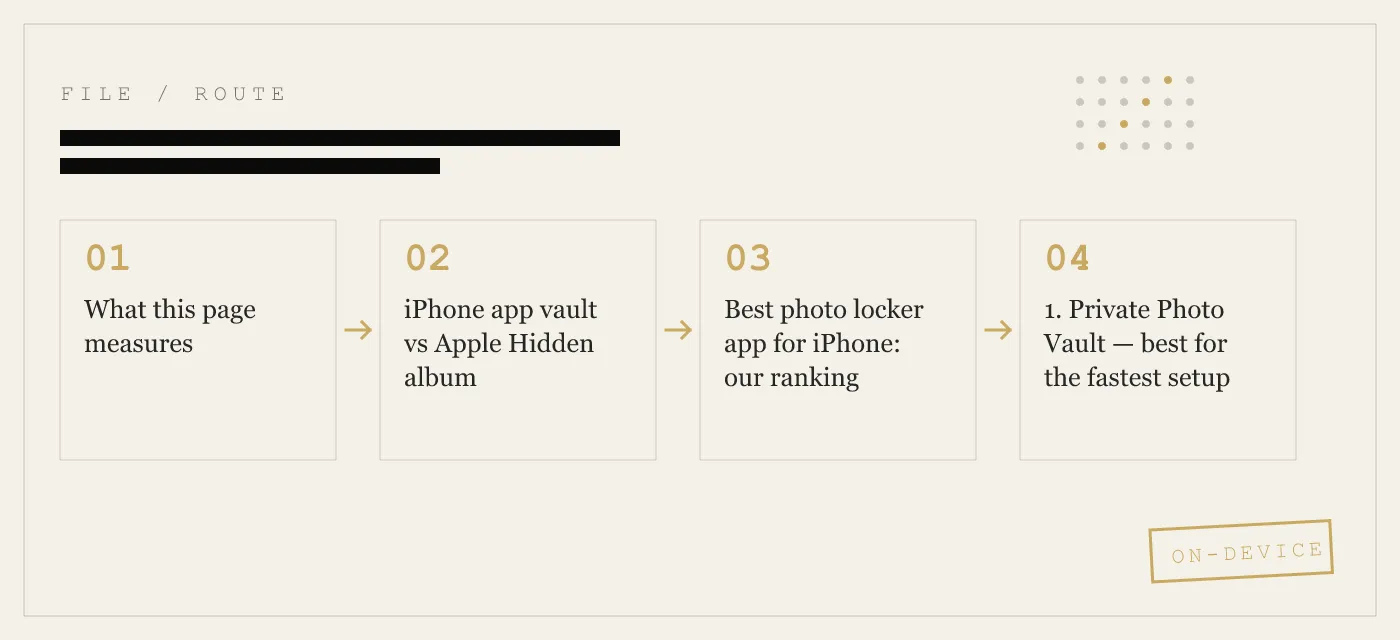
Best photo locker app for iPhone: our ranking
1. Private Photo Vault — best for the fastest setup
If your only goal is to get a locked album running as fast as possible, Private Photo Vault is still the easiest starting point in the source material.
The setup is simple: open the app, set a 4-digit PIN, allow photo access, import your images. The interface mirrors the familiar iPhone gallery layout, so there is very little to learn. For many users, that matters more than feature depth.
Why it ranks first on this page:
- no account required for basic use
- standard PIN flow
- very short path from install to first hidden photo
- familiar gallery-style interface
Limitations:
- the free tier is ad-supported
- its encryption standard is not publicly documented in the source material
- users who care about published cryptography will want a different ranking axis
Best for: people who want the fastest possible answer to “how do I lock photos on my iPhone today?”
2. Keepsafe — best for familiar mainstream onboarding
Keepsafe is still one of the most recognizable names in this category, and its setup flow shows why. The screens are clear, the PIN process is standard, and importing uses normal iOS patterns.
Why it ranks high:
- clear first-run flow
- simple PIN confirmation
- polished interface
- familiar for users who prefer a conventional photo-vault design
Why it does not rank first here:
- the free tier requires an email account
- that extra step slows onboarding
- if your goal is local-only privacy with minimal friction, sign-up is a real downside
The source material also notes free-tier limits and ads, plus a break-in style alert feature on paid access. What it does not provide in public documentation, based on the source, is the same level of published cryptographic detail as App-Vault.
Best for: users who want a familiar vault flow and do not mind creating an account.
3. App-Vault — best app vault for iPhone if you want it to hide in plain sight
If you searched for app vault for iPhone or iPhone app vault, App-Vault is the most literal answer on this page. It is not just a locked gallery. It is a separate on-device vault designed not to look like a vault at all when its disguise feature is enabled.
App-Vault takes a bit longer to set up because it uses a 5×5 pattern rather than a quick 4-digit PIN. That extra friction is real, and it is why App-Vault ranks third for pure onboarding speed.
Why many readers will still prefer it:
- no account required
- no ads
- on-device vault storage
- published AES-256-GCM encryption
- key derivation from the pattern via PBKDF2-SHA256
- keys protected with the iPhone Secure Enclave for wrapping
- optional Calculator Launcher, so the app can appear as a working calculator
- vault explicitly excluded from iCloud Backup and iTunes/Finder backups
The setup flow from the source is straightforward:
- Draw a 5×5 pattern.
- Import from Photos, Files, or camera.
- Lock the app.
App-Vault also has an important limitation that many “best of” pages gloss over: if you forget your pattern and did not write down the recovery phrase, there is no recovery process. That is a real tradeoff of a more privacy-focused design.
The free tier in current first-party documentation holds one file, not 25. Premium removes that limit. Paid plans are listed as Weekly from $3.99 and Yearly from $29.99 with a 7-day free trial on the yearly plan for new subscribers. Apple handles billing.
Best for: people who want a photo vault app for iPhone that is local-first, published, and less obvious on the Home Screen.
4. Vaultaire — best for users willing to trade speed for more configuration
Vaultaire is the closest comparison here if your interests overlap with App-Vault’s more security-conscious positioning. The source material describes it as strong on cryptographic depth, but slower and denser during setup.
Why it ranks lower on this page:
- more setup decisions up front
- more screens before first import
- a steeper learning curve for non-technical users
That does not make it worse overall. It just makes it worse for this page’s narrow question: which is easiest to get working quickly on iPhone?
Best for: users willing to spend longer in setup to get more configuration choices.
Side-by-side comparison
| App | Best for | Account required | Ads in free tier | Lock style | Disguise option | Published encryption in source |
|---|---|---|---|---|---|---|
| Private Photo Vault | Fastest setup | No | Yes | PIN | No | No |
| Keepsafe | Familiar mainstream flow | Yes | Yes | PIN | No | Partial claims, exact cipher not public in source |
| App-Vault | Discreet on-device iPhone app vault | No | No | 5×5 pattern | Yes, calculator launcher | Yes |
| Vaultaire | Security-minded users who tolerate more setup | No in local mode | Yes | Not the focus of this page | Yes | Yes |
Which photo vault app for iPhone should you choose?
If you want the fastest setup
Choose Private Photo Vault. It is the shortest path from install to locked gallery.
If you want a familiar, polished PIN flow
Choose Keepsafe. The email step is annoying if you want speed, but the interface is easy to understand.
If you want the best app vault for iPhone that does not obviously look like a vault
Choose App-Vault. The calculator-style launcher is the clearest differentiator on this page.
If you want more security-oriented depth and do not mind extra setup
Choose Vaultaire.
Why App-Vault ranks differently on different pages
Readers sometimes notice that App-Vault can rank lower on an “easiest” page and higher on a “most secure” page. That is not a contradiction.
It happens because App-Vault is optimizing for a different balance:
- stronger separation from the visible photo library
- on-device encryption with a published stack
- no account
- exclusion from Apple backup pipelines
- a disguise mode that changes how visible the app is on the Home Screen
Those choices improve privacy, but some of them add setup time. A 5×5 pattern takes longer than a four-digit PIN. Writing down a recovery phrase takes longer than skipping recovery entirely. Ease and depth are related, but they are not the same thing.
How to use a photo vault app on iPhone without making mistakes
No matter which app you choose, most setup problems come from the same few misunderstandings.
1. Do not assume import means the original photo is gone
On iPhone, deletion behavior matters. Some vault flows import first and then require a separate delete step from the Photos library. App-Vault’s first-party documentation is explicit that iOS does not allow silent photo deletion; the user confirms removal through Apple’s prompt.
Check the result yourself:
- open Photos
- go to Recents
- confirm the image is no longer there if your goal was full removal from the visible library
2. Understand the difference between local-only and cloud-backed designs
If you want the vault contents to stay only on the device, account-based apps may not match that preference. App-Vault’s documentation is explicit that the vault directory is excluded from iCloud Backup and iTunes/Finder backups and that it operates no server holding vault contents.
That is a strength for some users and a limitation for others. If you lose the device and did not preserve the recovery phrase, local-only design can mean the data is gone.
3. Save recovery material if the app provides it
With App-Vault, the recovery phrase is shown once during onboarding. If you do not keep it and later forget the pattern, the vault stays sealed. That is the intended design.
4. Use Apple’s own controls too
Even if you use a vault, basic iPhone hygiene still matters:
- keep iOS updated
- use a strong device passcode
- enable Face ID
- review Settings → Privacy & Security
- if you use Apple’s Hidden album too, review Settings → Apps → Photos
A vault app helps with app-level privacy. It does not replace device security.
How App-Vault specifically works as an iPhone app vault
Because the queries include app vault for iPhone and iPhone app vault, it is worth being direct about how App-Vault fits that intent.
App-Vault is an iPhone and iPad vault for photos, videos, and documents stored in an encrypted container on the device itself. According to its first-party documentation:
- file encryption uses AES-256-GCM
- the unlock pattern feeds PBKDF2-SHA256 with 600,000 iterations
- wrapped keys use the iPhone Secure Enclave
- the vault is excluded from iCloud Backup, iCloud Keychain, and iTunes/Finder backups
- there is no account
- the free tier stores one file
- Premium unlocks unlimited files plus features such as Calculator Launcher, Decoy Vault, Intruder Selfie, and File Shredder
Daily use is simple once setup is done:
- open the app, or open the calculator-style launcher if enabled
- unlock with the pattern
- browse the internal gallery
- import or export as needed
- lock and leave
The honest limitation is that App-Vault is not designed to defeat coercion, a compromised device, or a forgotten pattern without recovery material. Its own security page states those limits clearly, and we prefer that level of specificity to vague “military-grade” marketing.
Honest limitations of every option here
The biggest problem with many ranking pages is that they pretend one app wins every category. None does.
Private Photo Vault
- fastest setup
- but ad-supported free use
- and no public encryption detail in the source material
Keepsafe
- polished and familiar
- but sign-up adds friction
- and exact cryptographic details are not public in the source material
App-Vault
- strongest disguise and strongest published local-first position here
- but slower onboarding
- and the free tier is only one file
Vaultaire
- deeper than a casual locker
- but not the easiest experience for first-time users
Verdict
If your search is literally best photo locker app for iPhone, the answer splits by priority:
- Fastest setup: Private Photo Vault
- Most familiar flow: Keepsafe
- Best discreet iPhone app vault: App-Vault
- Best if you will tolerate more setup for more depth: Vaultaire
For most readers coming from the queries this page already ranks for, we think the most useful answer is this: App-Vault is the best choice when you want a photo vault app for iPhone that stays on-device, avoids accounts, and does not advertise itself as a vault. If you only care about shaving the first 30 to 60 seconds off setup, Private Photo Vault stays ahead.
Other ways to rank photo vault apps
This page ranks ease first. If your real question is different, use the matching page instead:
- Most Secure iPhone Photo Vault Apps — ranked by cryptographic strength, published ciphers, and architecture
- Best Free iPhone Photo Vault Apps — ranked by free-tier value
- Best iPhone Photo Vault Apps — Overall — combined ranking across security, UX, pricing, and features
- Photo Vault Apps Without a Subscription — pricing-model specific
Sources
- Apple App Store: published app listings and developer-disclosed privacy labels
- NIST FIPS 197: Advanced Encryption Standard
- IETF RFC 5116: An Interface and Algorithms for Authenticated Encryption
- OWASP: Password Storage Cheat Sheet
- Apple Platform Security guide: Secure Enclave
DIAGRAM · 01
DOSSIER
QUESTIONS
10 sharp answers.
-
01 What is the best photo locker app for iPhone?
The best photo locker app for iPhone depends on your priority. Private Photo Vault is the fastest to set up, Keepsafe is familiar, and App-Vault is the best fit if you want on-device storage, no account, and a calculator-style launcher. -
02 What is the best photo vault app for iPhone if I want no account?
App-Vault and Private Photo Vault both fit that requirement from the source material. App-Vault adds a disguise option and published cryptography; Private Photo Vault is faster to start. -
03 What is an app vault for iPhone?
An app vault for iPhone is a separate locked app that stores photos, videos, or files outside the visible Photos library. It is different from Apple’s Hidden album because it adds its own app-level lock and separate storage flow. -
04 Is there an iPhone app vault that looks like a normal app?
Yes. App-Vault can appear as a calculator when its Calculator Launcher is enabled, so it does not look like a photo vault on the Home Screen. -
05 Do easy photo vaults use real encryption?
Some do and some do not publish enough detail to verify it. App-Vault publishes its stack; several other apps on this page do not publicly document their exact cipher in the source material. -
06 Do I need to pay to use a photo vault?
Usually not to test one. App-Vault has a free tier for one file, while other apps on this page also offer free entry points with tradeoffs such as ads, file limits, or account requirements. -
07 What happens to my photos if I delete the vault app?
Photos stored only inside the vault are generally deleted with the app unless you export them first. Always export what you need before removing any vault app. -
08 Can someone find the vault app on my iPhone?
Often yes, because most vaults look like vaults. App-Vault is the exception on this page because it can present as a calculator and open only after a long-press on the equals key. -
09 Can I use a photo vault app for iPhone on a shared family iPad?
Yes. A vault app works well on shared household devices because it separates sensitive photos from the normal gallery with its own lock. -
10 Which vault app has the simplest lock screen?
A standard PIN is still the simplest for first-time users. Keepsafe and Private Photo Vault are easier to learn instantly; App-Vault’s 5×5 pattern takes a little longer but gives you a stronger disguise workflow.
RELATED DOSSIERS
Keep reading.
9 ENTRIES
- LINK / 01 · BEST OF
Most Secure iPhone Photo Vault Apps
Ranked by cryptographic strength, zero-knowledge architecture, and audit status — the opposite axis from this list.
- LINK / 02 · BEST OF
Best Free iPhone Photo Vault Apps
Ranked by free-tier generosity: file count, ads, and account requirements at no cost.
- LINK / 03 · GUIDE
Best iPhone Photo Vault Apps — Overall Rankings
The pillar guide ranking across all factors: security, UX, pricing, and features combined.
- LINK / 04 · BEST OF
Photo Vault Apps With Lifetime Pricing
Ranked by pricing model — only apps with a one-time payment option, no subscription required.
- LINK / 05 · COMPARE
App-Vault vs Vaultaire
Head-to-head with the closest competitor on cryptography and disguise features.
- LINK / 06 · COMPARE
App-Vault vs Keepsafe
Head-to-head with the category leader on brand recognition and ease of use.
- LINK / 07 · ALTERNATIVE
Keepsafe alternative for iPhone
Looking for a Keepsafe alternative on iPhone? Compare App-Vault, Vaultaire, and Private Photo Vault on storage model, account requirements, and pricing.
- LINK / 08 · ALTERNATIVE
LockMyPix alternative for iPhone
Need a LockMyPix alternative on iPhone? We compare App-Vault, Keepsafe, Vaultaire, and Private Photo Vault on security, pricing, and fit.
- LINK / 09 · ALTERNATIVE
Private Photo Vault Alternatives: Ad-Free Options for Hiding Photos on iPhone
Looking for a Private Photo Vault alternative? Compare ad-free, privacy-focused options for hiding photos on iPhone. Find the right vault app for your needs.
GET STARTED
Seal the vault.
Free to download. The free tier holds one file. Premium removes the limit — Weekly from $3.99 or Yearly from $29.99 with a 7-day free trial.