FILE G2 / ANDROID PRIVACY
How to Hide Apps on Android
Android gives you several ways to hide apps, but they do not all protect the same thing. Some only remove the icon from the app drawer. Some add a lock screen. Samsung Secure Folder goes further by isolating apps inside a separate encrypted container. This guide explains each method, how to hide apps in Secure Folder, and the limits of so-called private apps on Android.
UPDATED · 2026-07-22 · REVIEWED BY APP-VAULT
TL;DR
To hide apps on Android, use your phone's launcher hide setting or, on Samsung, move the app into Secure Folder for stronger isolation. Hiding an icon only removes it from the home screen or app drawer; it does not uninstall the app or make it disappear from Settings > Apps.
Android gives you several ways to hide apps, but they do not all protect the same thing. Some only remove the icon from the app drawer. Some add a lock screen. Samsung Secure Folder goes further by isolating apps inside a separate encrypted container. This guide explains each method, how to hide apps in Secure Folder, and the limits of so-called private apps on Android.
What hiding an app on Android actually does
When people search for android hide app or private apps android, they usually mean one of three different actions:
- Hide the icon. The app disappears from the home screen or app drawer.
- Gate the app. Opening it requires a PIN, pattern, or biometric check.
- Separate the app. The app runs in a distinct protected space, with its own copy of data.
Those are not the same thing.
Most Android hide features only handle the first one: icon visibility. The app remains installed and usually remains easy to find in Settings > Apps. Notifications may still appear. Background activity may still continue.
That distinction matters because a hidden icon is not the same as a private app in the stronger sense. If someone knows where to look in system settings, simple launcher hiding is thin protection.
How to hide apps on Android
There is no single Android-wide path because each phone maker handles this differently. In practice, most methods fall into two groups:
- Launcher hiding
- Protected containers such as Secure Folder
Here is the short version.
| Method | What it does | Best for | Main limit |
|---|---|---|---|
| Launcher hide | Removes icon from home screen or app drawer | Casual privacy | App usually still appears in Settings > Apps |
| App lock | Adds PIN, pattern, or biometric gate | Preventing quick open access | Does not necessarily separate app data |
| Secure Folder | Places app in a separate protected container | Strongest Samsung option | Samsung-only |
If your goal is only to keep an icon out of sight, launcher hiding is enough. If your goal is to make the app materially harder to inspect on a shared family device, during travel, or when handing over your phone briefly, Secure Folder is the more serious option.
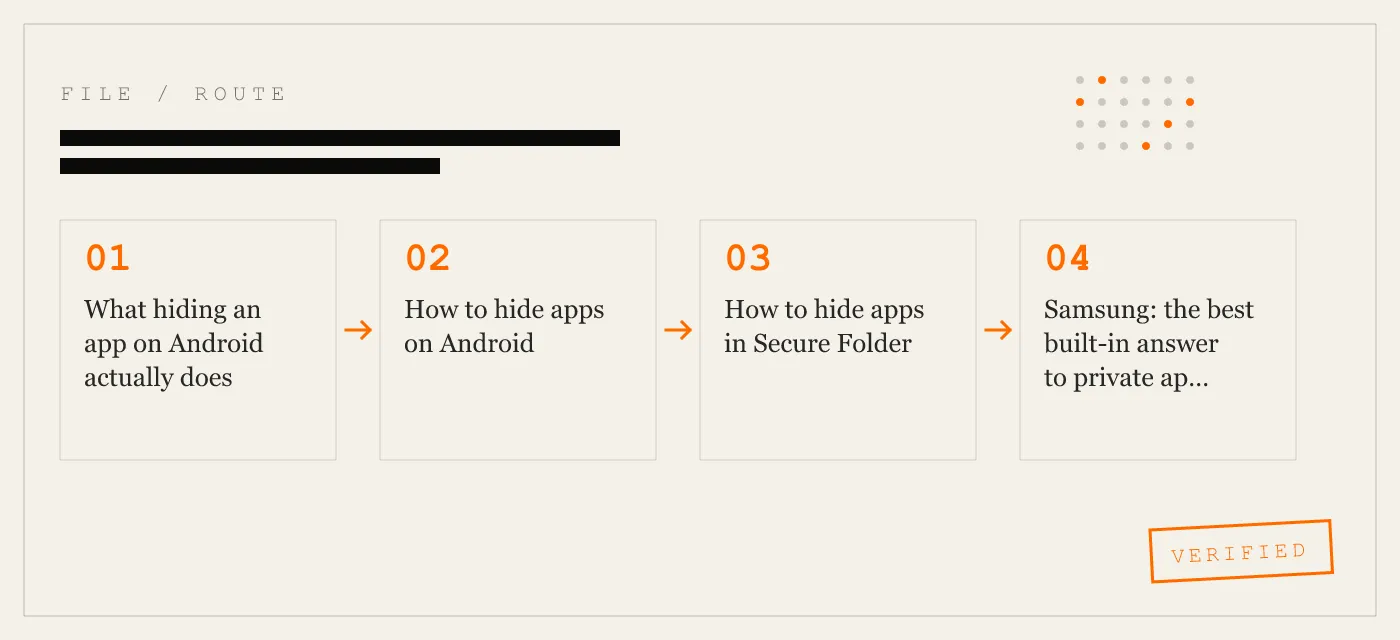
How to hide apps in Secure Folder
This is the query we see most often, and the answer is straightforward: to hide apps in Secure Folder, you first set up Secure Folder, then add apps into it, and optionally hide the Secure Folder icon itself from normal view.
Step 1: Open Secure Folder setup
On Samsung, go to:
Settings > Biometrics and security > Secure Folder
On some software versions, Samsung may place it under a closely related security menu, but Biometrics and security > Secure Folder is the standard path.
You will be prompted to sign in to the Samsung feature and create a lock method for Secure Folder.
Step 2: Set a separate lock
Choose a PIN, pattern, or biometric for Secure Folder.
This matters because Secure Folder is more than a hidden icon. It is a separate protected space for apps and files on Samsung devices.
Step 3: Add apps to Secure Folder
Open Secure Folder, then tap:
Add apps
Select the apps you want to place inside the folder. Once added, those apps live inside the Secure Folder environment rather than only in the normal app space.
Step 4: Optionally hide the Secure Folder icon
After setup, Samsung also lets you reduce visibility of the Secure Folder entry itself. That means someone casually looking through the home screen or app drawer may not see it immediately.
What Secure Folder protects against
Secure Folder is the strongest first-party Samsung option in this guide because it is not just launcher hiding. It places apps in a separate encrypted container.
What Secure Folder does not do
Secure Folder is still a phone feature, not a magic disappearance tool. A determined person with enough device access, time, and knowledge of Samsung features may still know to look for it.
Samsung: the best built-in answer to private apps on Android
For the query private apps android, Samsung is the cleanest built-in answer because it offers multiple privacy layers.
Method 1: Hide the app icon from the launcher
On Samsung, you can hide icons directly from the launcher.
Typical path:
- Open the app drawer
- Tap the menu
- Open Settings
- Tap Hide apps
- Select apps
- Tap Done
This removes the icon from normal view. It does not uninstall the app.
Method 2: Use Secure Folder
If you want stronger privacy than simple icon hiding, use Secure Folder instead of relying only on the launcher hide setting.
Method 3: Use Good Lock for launcher customization
Samsung’s Good Lock can also help with launcher-level hiding and layout control. Its role is customization, not deep security. If you only need the icon gone, it works. If you need real separation, Secure Folder is the better fit.
Android hide app methods by strength
If we sort Android methods by actual privacy value rather than convenience, the order looks like this:
| Method | Visibility removed | Access gated | Separate protected space |
|---|---|---|---|
| Launcher hide | Yes | No | No |
| App lock | Sometimes | Yes | No |
| Secure Folder | Yes | Yes | Yes |
This is the core point many guides miss: an android hide app feature is often just cosmetic. It changes what appears on screen, not how the app is stored or isolated.
Are private apps on Android really private?
Usually, no. In most cases, private apps android means one of these weaker forms:
- the icon is hidden
- the app is behind a lock overlay
- the app is moved out of the normal drawer view
That can be enough for casual privacy on a shared family device or when someone briefly handles your phone. It is not the same as making the app invisible to the operating system.
A hidden app often still remains visible in places like:
- Settings > Apps
- notification settings
- share sheets
- recent usage lists, depending on the device and app
So if your definition of private is “not visible to casual browsing,” Android can do that. If your definition is “hard to discover even when someone knows Android settings well,” only a protected container such as Secure Folder gets close among the methods covered here.
How Samsung Secure Folder compares with simple hide apps
This is the practical difference:
| Feature | Hide apps | Secure Folder |
|---|---|---|
| Removes icon from app drawer | Yes | Yes, indirectly through container use |
| Keeps app installed | Yes | Yes |
| Adds separate lock | No | Yes |
| Places app in separate encrypted container | No | Yes |
| Good for quick casual privacy | Yes | Yes |
| Stronger against informed inspection | No | Better |
If you searched how to hide apps in secure folder, the reason to use it is exactly this difference. Secure Folder is not merely tidying the app drawer. It is the stronger Samsung privacy path.
What about other Android phones?
Android as a platform is flexible, but that flexibility also means inconsistency. Some phone makers include hide features, some include app locks, and some include separate spaces. The names and menu paths vary.
A few general rules hold up:
- If the feature is called Hide apps, it usually hides the icon.
- If the feature is called App Lock, it usually adds a gate.
- If the feature creates a separate space or protected folder, it is usually the stronger option.
That is why Samsung stands out in this article. Secure Folder is clearer and more capable than the usual hide-app toggle.
The limits of hiding apps on Android
All app hiding methods share a basic limit: they are designed first for convenience and casual privacy, not for every threat model.
Hiding apps is useful when:
- you share a device within a household
- you hand your phone to someone for a call or photo
- you want less obvious on-screen exposure while traveling
- you want fewer visible apps on a phone you plan to sell after properly removing your data
Hiding apps is not a complete answer when:
- someone knows your device unlock and checks system settings
- someone is specifically familiar with Samsung features like Secure Folder
- you need protection beyond icon visibility
That is why we separate “hide the icon” from “protect the contents.” They solve different problems.
App-Vault: why we draw a line between hiding and sealing
We build App-Vault for iPhone, not Android, but the comparison matters because the Android search intent often confuses hidden with secure.
App-Vault is designed around a different model: files are sealed inside an on-device encrypted container rather than merely hidden from the launcher. According to our published security documentation, App-Vault uses AES-256-GCM for file confidentiality and integrity, PBKDF2-SHA256 for key derivation from a 5×5 pattern, and the iPhone Secure Enclave for key wrapping. The vault is on-device, excluded from iCloud Backup and iTunes/Finder backups, and App-Vault operates no server that holds vault contents.
That is a different category from launcher hiding.
It also has clear limits, and we state them plainly. App-Vault does not defend against a coerced unlock, a compromised device, a forgotten pattern without the recovery phrase, or lawful orders directed at you personally. Those limitations are part of taking privacy claims seriously.
For people moving from Android to iPhone, the practical difference is this: on Android, “hide app” often means make the icon disappear. In App-Vault, the goal is to seal photos, videos, and documents into a separate encrypted vault on the device itself.
App-Vault and Keepsafe: different problem framing
Since this site also compares App-Vault and Keepsafe elsewhere, it is worth keeping the framing straight here.
This guide is about hiding apps on Android, especially Samsung Secure Folder. App-Vault and Keepsafe are relevant when your real need is not “remove an icon from the drawer” but “store sensitive files in a dedicated vault.”
App-Vault’s published architecture is specific:
- on-device AES-256-GCM encryption
- PBKDF2-SHA256 from a 5×5 pattern
- Secure Enclave key wrapping
- no account required
- vault excluded from Apple backup pipelines
- optional calculator launcher
- optional decoy vault
- free tier for one file, with paid plans through Apple if you need unlimited files and Premium features
That is a different tool category from Android launcher hiding and from Samsung Secure Folder’s app-container model.
Which method should you use?
Use this rule of thumb:
- Want the icon gone from view? Use the phone’s built-in hide apps setting if available.
- Want stronger privacy on Samsung? Use Secure Folder.
- Want to protect files rather than app icons? Use a vault architecture, not just launcher hiding.
For most people searching android hide app, the answer is not “install more complexity.” It is “pick the method that matches your actual threat model.”
Bottom line
If you want to hide apps on Android, start with the built-in launcher hide setting if your phone has one. If you use Samsung, Secure Folder is the strongest built-in option because it does more than hide an icon: it places apps in a separate protected container.
If you searched how to hide apps in secure folder, the basic steps are:
- Open Settings > Biometrics and security > Secure Folder
- Set a separate lock
- Open Secure Folder
- Tap Add apps
- Optionally hide the Secure Folder icon from normal view
If you searched private apps android, the key truth is simpler than most guides make it sound: most private-app features on Android are only private at the launcher level. They remove visibility. They do not turn a normal app into something the system no longer knows exists.
Sources
- Samsung: Secure Folder overview
- NIST FIPS 197: Advanced Encryption Standard
DIAGRAM · 01
DOSSIER
QUESTIONS
13 sharp answers.
-
01 How do I hide an app on Samsung Galaxy?
To hide an app on Samsung Galaxy, either hide its icon from the launcher or place it in Secure Folder. Launcher hiding removes it from normal view; Secure Folder gives it a separate protected space. -
02 How do I hide apps on Android without a launcher?
On Samsung, use Secure Folder if you want more than icon hiding. On phones without a built-in hide setting, Android often does not offer a universal no-launcher method. -
03 How do I hide apps on Motorola?
Many Motorola phones do not include a built-in hide apps feature in the stock launcher. If that setting is missing, you cannot rely on a native Motorola hide option. -
04 How do I hide apps on Vivo?
Some Vivo phones include a Hidden Apps feature and an App Lock feature. Hidden Apps removes the icon; App Lock adds a gate but does not turn the app into a separate encrypted container like Secure Folder. -
05 How do I hide apps on Xiaomi?
Some Xiaomi phones include Hidden Apps and a separate space feature. Hidden Apps hides the icon; a separate space offers stronger separation than simple launcher hiding. -
06 How do I hide apps on OnePlus?
OnePlus offers Hidden Space on supported devices, which hides apps from the main drawer but does not make them disappear from the system entirely. -
07 How do I hide apps on Google Pixel?
Pixel does not offer a standard built-in hide apps feature in its default launcher. If you do not see a hide setting, the launcher is the limit. -
08 How do I hide apps on Huawei?
Some Huawei phones include both Hide Apps and App Lock. Hide Apps removes visibility in the launcher, while App Lock adds an access gate. -
09 How do I hide apps on Oppo?
Some Oppo phones include a Hidden Apps feature and App Lock. The exact menu name varies by software version. -
10 How do I hide apps on LG?
Some LG launchers include a Hide or Hide/Show apps option in the app drawer settings. If present, it hides the icon but keeps the app installed. -
11 How to hide apps in Secure Folder?
To hide apps in Secure Folder, open Settings > Security and privacy or Biometrics and security > Secure Folder, unlock it, then use Add apps to place selected apps inside. You can also hide the Secure Folder icon itself from normal view after setup. -
12 Are private apps on Android really private?
Usually no. Private apps on Android are often only hidden from the launcher, and the app can still remain visible in Settings > Apps. -
13 What does android hide app usually mean?
Android hide app usually means hiding the icon, not encrypting the app's own data separately. The app stays installed unless you disable or uninstall it.
RELATED DOSSIERS
Keep reading.
9 ENTRIES
- LINK / 01 · GUIDE
Calculator Vault Apps for iPhone
How vault apps with alternate icons work on iOS, including Apple Review requirements.
- LINK / 02 · GUIDE
Best Photo Vault Apps for iPhone
Hands-on comparison of iOS photo vaults by encryption, features, and privacy.
- LINK / 03 · GUIDE
How to Hide Photos on iPhone
Apple's built-in Hidden album versus third-party vault apps. What each method protects.
- LINK / 04 · GUIDE
Best App Lock for iPhone
iOS does not have a native app lock. This guide covers the workarounds and their limits.
- LINK / 05 · GUIDE
Best App for Hiding Pictures and Videos
Cross-platform comparison of vault apps for iPhone and Android.
- LINK / 06 · COMPARE
App-Vault vs Keepsafe
Feature-by-feature comparison of two iOS-first vault apps.
- LINK / 07 · GUIDE
How to Hide Apps on iPhone — Built-In Methods, Limits, and What to Use Instead
Complete guide to hiding apps on iPhone using built-in iOS features, Screen Time, Face ID locks, and dedicated vault apps. What each method protects against.
- LINK / 08 · GUIDE
How to Hide Photos on Android
Hide photos on Android with Google Photos, Samsung Secure Folder, or a private vault. We compare what actually hides files and what really encrypts them.
- LINK / 09 · GUIDE
How to Hide Photos from Camera Roll on iPhone: Beyond the Hidden Album
Learn how to hide photos from camera roll on iPhone. Why the Hidden Album still syncs to iCloud and how a vault app like App-Vault removes them entirely.
GET STARTED
Seal the vault.
Free to download. The free tier holds one file. Premium removes the limit — Weekly from $3.99 or Yearly from $29.99 with a 7-day free trial.