FILE G12 / PRIVACY TUTORIAL
How to Hide an Album on iPhone — Using Hidden Album, Private Folders, and Dedicated Vaults
The iPhone Photos app includes a Hidden Album that moves sensitive pictures out of your main camera roll. But the Hidden Album itself can be shown or hidden in Settings, and it offers no password protection. This guide walks through every method of hiding a photo album on iPhone — the built-in Hidden Album, shared album visibility, and third-party vault apps like App-Vault for true encryption.
UPDATED · 2026-05-16 · REVIEWED BY APP-VAULT
TL;DR
The iPhone Hidden Album removes photos from the main camera roll but stores them without encryption in a folder that anyone can open if they know where to look. To truly hide an album on iPhone, you either toggle the Hidden Album off in Settings (which hides the folder entirely but leaves the photos in the Recently Deleted folder for 30 days), or you use a dedicated vault app that encrypts each file with AES-256 and locks the entire album behind a password or biometric.
The iPhone Hidden Album — What It Is and What It Is Not
The iPhone Hidden Album is a system folder inside the Photos app. When you hide a photo, it moves from the main camera roll into this folder. The folder sits under the Utilities section of the Albums tab, labeled “Hidden.”
That is the extent of what the Hidden Album does.
It does not encrypt the photos. It does not require a password to open. It does not hide photos from the Recently Deleted folder. It does not prevent someone from seeing the photos if they know where to look.
The Hidden Album is a convenience feature, not a security feature. Apple designed it for situations like hiding a surprise birthday party photo or removing duplicate screenshots from the main view. It was never intended to protect sensitive documents, private medical records, or privileged legal material.
How to Hide an Album on iPhone Using the Built-In Hidden Album
The process is straightforward and has been consistent across iOS 16, 17, and 18.
Step 1: Select the Photos
Open the Photos app. Tap Select in the top-right corner. Tap each photo or video you want to hide. A blue checkmark appears on each selected item.
Step 2: Tap the Share Button
With the photos selected, tap the share icon — a square with an upward arrow. This opens the share sheet.
Step 3: Scroll Down and Tap Hide
Scroll past the row of app icons. Near the bottom of the share sheet, you will see “Hide” with an eye-slash icon. Tap it.
Step 4: Confirm
A popup asks “Are you sure you want to hide [number] photos?” Tap “Hide Photo” to confirm.
The selected photos disappear from the main camera roll, Memories, and For You tab. They now live inside the Hidden Album.
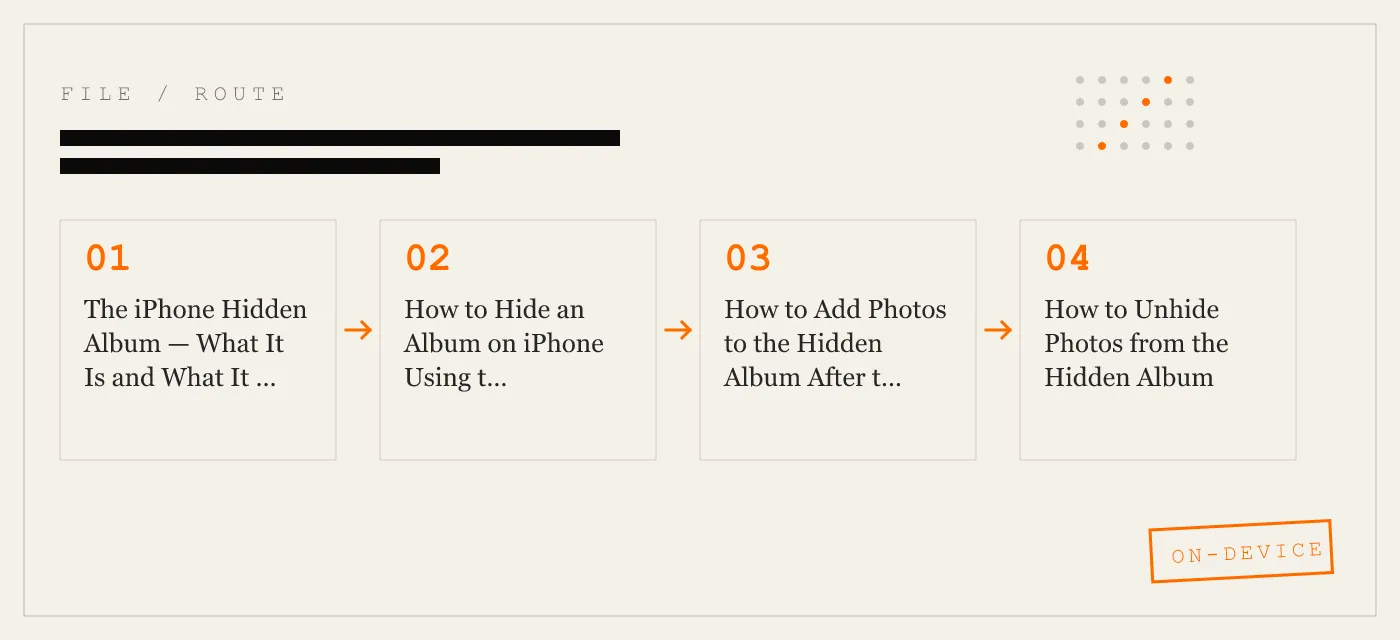
How to Add Photos to the Hidden Album After the Fact
You can add more photos to the Hidden Album at any time. Repeat the same steps — select, share, hide. The Hidden Album accumulates everything you hide. There is no way to create separate hidden albums or folders within the Hidden Album.
If you hide a photo that is already inside the Hidden Album, nothing happens. The system does not create duplicates.
How to Unhide Photos from the Hidden Album
To restore hidden photos to the main camera roll:
- Open the Hidden Album in the Albums tab.
- Tap Select.
- Choose the photos you want to unhide.
- Tap the share icon.
- Tap “Unhide.”
The photos return to their original location in the camera roll. They are removed from the Hidden Album.
How to Hide the Hidden Album Itself
The Hidden Album folder is visible by default. Anyone who opens the Albums tab on your phone can see it. To hide the folder:
- Open Settings.
- Scroll down and tap Photos.
- Toggle off “Show Hidden Album.”
The Hidden Album folder disappears from the Albums tab immediately.
Important caveat: Toggling off “Show Hidden Album” does not delete the hidden photos. They remain on your device. They also remain visible in the Recently Deleted folder for 30 days after you hide them, unless you permanently delete them.
If someone goes to Settings > Photos and toggles “Show Hidden Album” back on, the folder reappears with all its contents intact. There is no password on this toggle. There is no authentication required.
How to Make a Private Photo Album on iPhone — The Limits of Built-In Options
The Hidden Album is the only private album the Photos app offers. You cannot create a second hidden folder. You cannot rename the Hidden Album. You cannot password-protect it. You cannot encrypt it.
For many users, this is sufficient. If your threat model is “I do not want my vacation photos mixed with my receipts in the camera roll,” the Hidden Album works fine.
But if your threat model includes:
- A family member borrowing your phone
- A customs officer scrolling through your camera roll
- A colleague using your phone for a presentation
- A friend taking a group photo and swiping through your albums
- Selling or trading in your iPhone
The Hidden Album provides no protection. Anyone with physical access to your unlocked phone can open the Hidden Album in seconds.
How to Lock an Album on iPhone — Why the Photos App Cannot Do This
The Photos app has no album lock feature. There is no way to set a passcode on the Hidden Album or any other album.
Your only option is locking the entire phone with Face ID or Touch ID. But that is an all-or-nothing approach. Once the phone is unlocked, every album is accessible.
Third-party vault apps like App-Vault solve this problem by creating a separate, encrypted container that lives outside the Photos app. The vault app requires its own authentication — a pattern lock, a PIN, or biometric — independent of the phone’s lock screen.
How to Hide Shared Albums on iPhone
Shared albums in iCloud work differently. You cannot hide a shared album the way you hide a regular album.
Your options are:
- Leave the shared album. Tap the shared album, tap the people icon, scroll to the bottom, tap “Unsubscribe” or “Delete Album” (if you created it).
- Mute notifications. Tap the shared album, tap the bell icon to stop receiving alerts. The album remains visible in the Shared tab.
- Remove yourself from a shared album you did not create. Tap the album, tap the people icon, tap your name, tap “Remove Me.”
There is no way to make a shared album invisible without leaving it entirely.
When the Hidden Album Falls Short — Real-World Scenarios
Customs and Border Inspections
A customs officer may ask you to unlock your phone and hand it over. They can open the Photos app, check the Hidden Album, and view every photo inside. The Hidden Album is not hidden from anyone who knows iOS.
Shared Family iPad
If you share an iPad with your children, anyone can open the Photos app and find the Hidden Album. There is no way to restrict access to specific albums on a shared device without using a vault app.
Lent Phone
You hand your phone to a friend to take a group photo. They see the camera roll. They swipe up and see the Hidden Album. They open it. The photos inside are exposed.
Before Selling or Trading In
When you sell an iPhone, you are supposed to erase all content and settings. But if you use the Hidden Album as a long-term storage solution, you might forget to unhide and delete those photos before the wipe. The photos are gone after the wipe, but the point is that the Hidden Album is not a reliable long-term privacy tool.
How App-Vault Solves the Album Privacy Problem
App-Vault is a dedicated iPhone vault app that encrypts every file with AES-256-GCM, a NIST-standard cipher that uses a unique 96-bit nonce per file. The key derivation runs 600,000 iterations of PBKDF2-SHA256, and the output is wrapped by a key generated inside the iPhone Secure Enclave. The Enclave key never leaves the chip.
The vault makes zero network calls by default. There are no servers, no accounts, no telemetry, and no third-party SDKs. The privacy nutrition label declares no data collected.
Calculator Launcher
App-Vault includes a fully functional iOS calculator. Press and hold the equals key to access the encrypted vault. This design satisfies Apple guideline 4.3 for alternate icons. The calculator is not a trick — it is a real calculator with a shortcut.
Decoy Vault
App-Vault supports a second, mathematically independent vault catalog. The Decoy Vault uses a separate 5x5 pattern lock. If someone forces you to open the vault, you enter the decoy pattern, and they see only the decoy album. The real vault remains sealed.
How to Hide a Photo Album on iPhone with a Vault App
Using App-Vault to hide photos is a three-step process:
- Import photos into the vault. Open App-Vault, tap the import button, and select photos from your camera roll. App-Vault copies the files into its encrypted storage.
- Delete the originals from the Photos app. After importing, delete the original photos from the main camera roll. Empty the Recently Deleted folder to ensure no copies remain.
- Lock the vault. Set a pattern lock or enable Face ID authentication. The vault is now sealed.
The photos are encrypted at rest. They are not visible in the Photos app, the camera roll, or any system album. Even if someone gains physical access to your unlocked phone, they cannot open App-Vault without the pattern or biometric.
The Difference Between Hiding and Encrypting
Hiding a photo on iPhone moves it to a folder that is not displayed in the main camera roll. The photo file itself remains unencrypted on the device’s storage. Any file system-level access tool can read it.
Encrypting a photo transforms the file into ciphertext that cannot be read without the correct decryption key. Even if the file is extracted from the device, it is useless without the key.
The Hidden Album hides. App-Vault encrypts. These are fundamentally different operations with fundamentally different security properties.
How to Choose the Right Method
| Scenario | Recommended Method |
|---|---|
| Organizing photos away from camera roll | Hidden Album |
| Hiding photos from someone who borrows your phone for a minute | Hidden Album + toggle off Show Hidden Album |
| Protecting sensitive documents from a determined person | App-Vault with encryption |
| Customs or border crossing | App-Vault with Decoy Vault |
| Shared family iPad | App-Vault with separate vault for each user |
| Selling or trading in iPhone | App-Vault + full device erase |
Common Questions About Hiding Albums on iPhone
Can I hide an album without moving each photo individually?
No. The Photos app requires you to select photos one by one and hide them. There is no “hide entire album” button.
Can I hide the Hidden Album permanently?
No. The “Show Hidden Album” toggle in Settings can be changed back at any time by anyone with access to your phone. There is no way to lock the toggle.
What happens to hidden photos when I back up to iCloud?
Hidden photos are included in iCloud backups. If someone restores your iCloud backup to another device, the hidden photos are restored along with everything else. They remain in the Hidden Album on the restored device.
Can I hide videos in the Hidden Album?
Yes. Videos are treated the same as photos. Select a video, tap the share button, and choose Hide.
Does the Hidden Album appear in the Recently Deleted folder?
Yes. When you hide a photo, it moves to the Hidden Album. But the original photo also remains in the Recently Deleted folder for 30 days unless you delete it permanently from there.
The Bottom Line
The iPhone Hidden Album is useful for basic photo organization. It is not a security feature. It does not encrypt, lock, or truly protect your photos from anyone who knows iOS.
For genuine privacy — the kind that protects against customs inspections, shared device access, and physical device theft — you need a vault app that encrypts files, requires independent authentication, and makes zero network connections.
App-Vault provides that. The Hidden Album provides convenience. Know the difference and choose accordingly.
Sources
- Apple Support: Hide and show photos on iPhone
- Apple Support: Use Screen Time on iPhone
- Apple Platform Security guide: Data protection overview
- Apple Developer: App Privacy details on the App Store
- NIST FIPS 197: Advanced Encryption Standard
DIAGRAM · 04
DOSSIER
QUESTIONS
10 sharp answers.
-
01 How to hide an album on iPhone?
Select the photos you want to hide, tap the share button, scroll down, tap Hide, then confirm. The photos move to the Hidden Album in the Albums tab under Utilities. -
02 How to hide album in iPhone without deleting?
Use the Hide feature in the Photos app. The photos remain on your device but are removed from the camera roll, Memories, and For You tab. They go to the Hidden Album, which you can toggle on or off in Settings. -
03 How to make a private photo album on iPhone with password?
The built-in Photos app does not support password-protected albums. You need a third-party vault app like App-Vault, which encrypts each photo with AES-256-GCM and locks the entire album behind a pattern lock or biometric. -
04 How do I add photos to the hidden album on iPhone?
Open Photos, tap Select, choose the photos, tap the share icon, scroll down past the app row, tap Hide, then tap Hide Photo to confirm. -
05 How to lock an album on iPhone?
The Photos app has no album lock feature. Your only option is locking the entire phone with Face ID or Touch ID. For per-album locking, use a vault app that supports separate passwords for different albums. -
06 How to hide shared albums on iPhone?
You cannot hide shared albums individually. You can leave the shared album or turn off notifications. The album remains visible in the Shared tab. -
07 How to hide the hidden album on iPhone?
Go to Settings > Photos and toggle off 'Show Hidden Album'. The Hidden Album folder disappears from the Albums tab. Hidden photos are still on your device and still appear in Recently Deleted. -
08 Can you create a private photo album on iPhone?
Yes, using the Hidden Album feature. But it is not private in the sense of being password-protected or encrypted. For true privacy, use a vault app that encrypts files and requires authentication to open. -
09 How do I make a secret album on iPhone?
The Hidden Album is the only built-in secret album. To make it truly secret, toggle off 'Show Hidden Album' in Settings > Photos. For encryption and passcode protection, use App-Vault. -
10 How to add photos to hidden album on iPhone without deleting originals?
The Hide feature does not delete originals. It moves a copy of the photo to the Hidden Album. The original remains in your camera roll until you also hide it or delete it separately.
RELATED DOSSIERS
Keep reading.
9 ENTRIES
- LINK / 01 · CRYPTOGRAPHY
AES-256-GCM Encryption
How App-Vault encrypts every file with a unique nonce and hardware-bound key derivation.
- LINK / 02 · AUTHENTICATION
Pattern Lock Security
The math behind the 5×5 grid — 600
- LINK / 03 · THREAT MODEL
App-Vault Security Model
What App-Vault defends against and what it does not. Transparent threat modeling.
- LINK / 04 · ARCHITECTURE
Zero-Knowledge Architecture
App-Vault has no servers
- LINK / 05 · COMPARISON
App-Vault vs Keepsafe
Feature-by-feature breakdown of the two most popular iPhone vault apps.
- LINK / 06 · COMPARISON
App-Vault vs Vaultaire
How App-Vault and Vaultaire differ on encryption
- LINK / 07 · GUIDE
How to Hide Apps on Android
Learn how to hide apps on Android, including Samsung Secure Folder steps, what launcher hiding does, and where private apps still remain visible.
- LINK / 08 · GUIDE
How to Hide Apps on iPhone — Built-In Methods, Limits, and What to Use Instead
Complete guide to hiding apps on iPhone using built-in iOS features, Screen Time, Face ID locks, and dedicated vault apps. What each method protects against.
- LINK / 09 · GUIDE
How to Hide Photos on Android
Hide photos on Android with Google Photos, Samsung Secure Folder, or a private vault. We compare what actually hides files and what really encrypts them.
GET STARTED
Seal the vault.
Free to download. The free tier holds one file. Premium removes the limit — Weekly from $3.99 or Yearly from $29.99 with a 7-day free trial.