FILE G3 / IPHONE PRIVACY GUIDE
How to Hide Apps on iPhone — Built-In Methods, Limits, and What to Use Instead
iOS offers several ways to hide apps from the home screen, the App Library, and search. Most of them are cosmetic — the app is still installed, still visible in Settings, and still accessible to anyone who knows where to look. This guide walks through every method, explains what each one actually does, and covers the alternatives that provide real protection.
UPDATED · 2026-05-16 · REVIEWED BY APP-VAULT
TL;DR
You can remove apps from the home screen, hide entire pages, lock apps behind Face ID in iOS 18, or restrict them with Screen Time. None of these methods encrypt the app's data or conceal the app from a determined person with physical access. For photos, files, and sensitive documents, a dedicated vault app with AES-256-GCM encryption and no cloud backend is the only approach that survives a device inspection.
What “hiding an app” actually means on iPhone
Apple does not offer a single “hide” toggle. Instead, iOS provides a collection of partial controls — each one addressing a different surface where an app can appear. Understanding which surface matters to you is the first step.
An installed iPhone app can show up in five places:
- Home screen — the grid of icons you swipe through.
- App Library — the auto-organized list accessible by swiping past the last home screen page.
- Spotlight search — pull down on any home screen and type.
- Settings > General > iPhone Storage — a complete list of every installed app and its data footprint.
- Notifications — banners, lock screen alerts, and Notification Center entries.
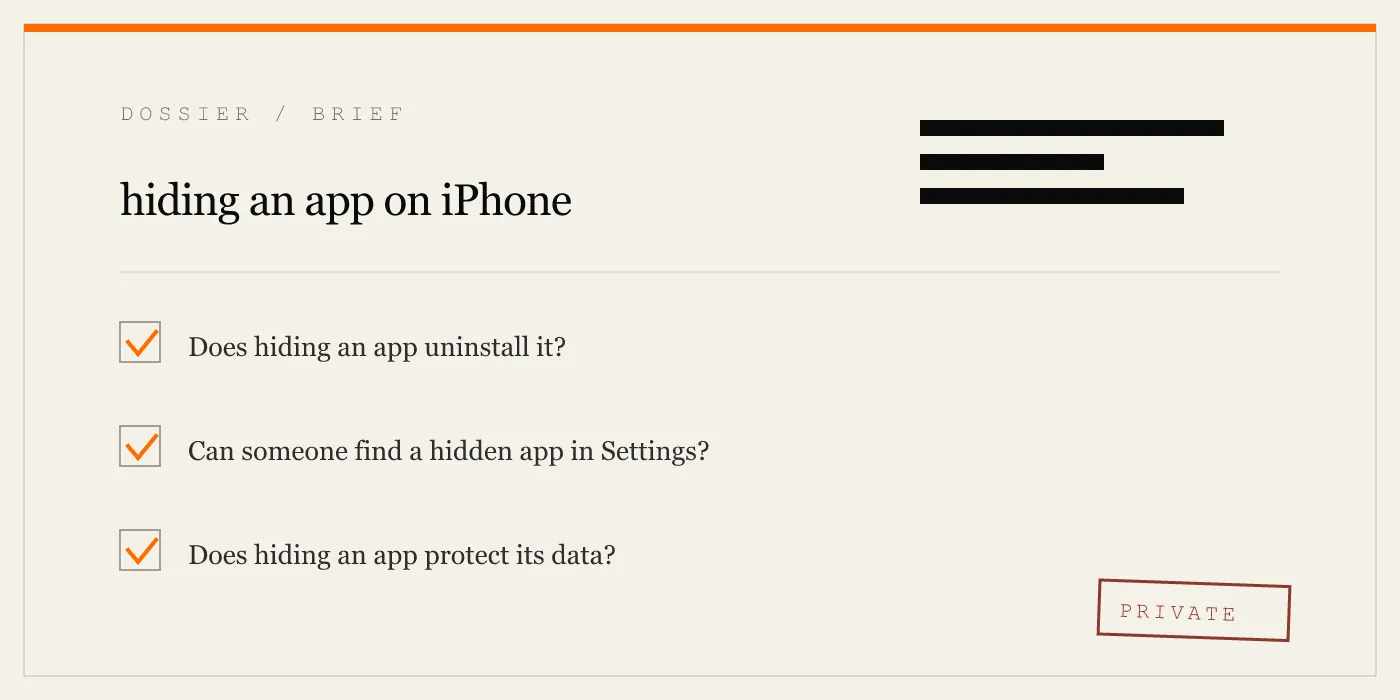
Hiding an app from the home screen does not touch the other four. Hiding it from search does not remove it from Settings. Only deleting the app removes it from all five — and that destroys the data too.
This is why the built-in methods are best understood as organizational tools, not privacy controls.
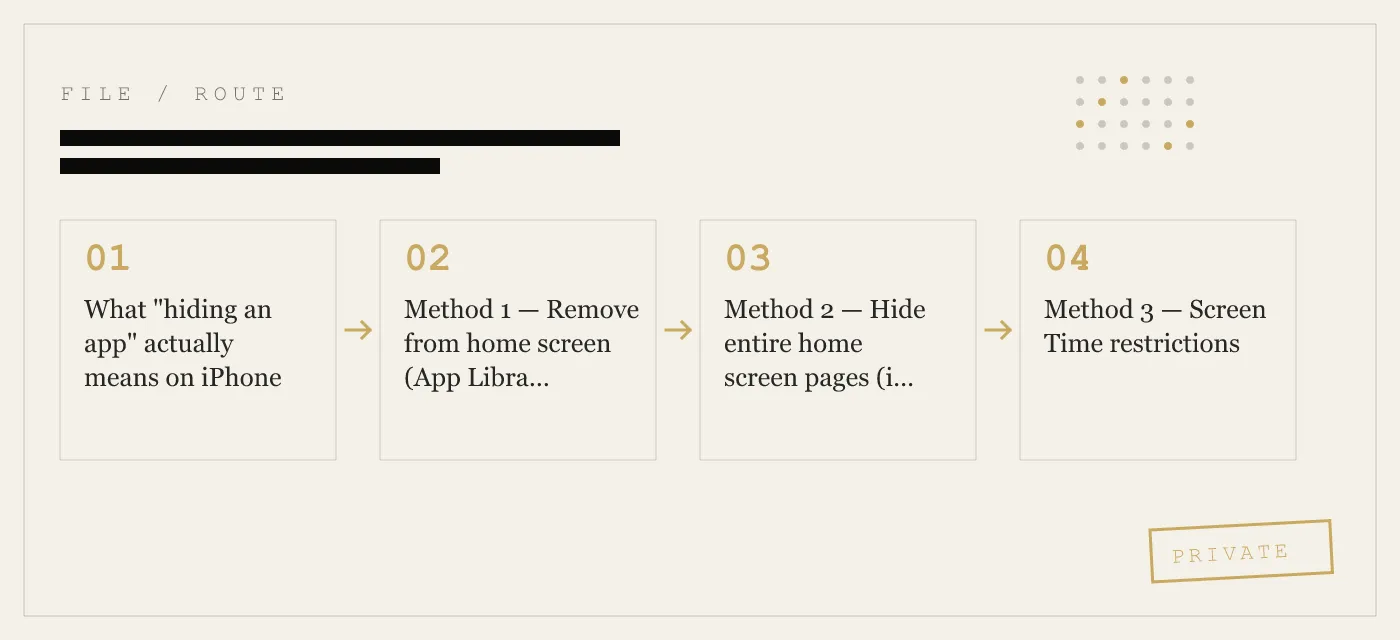
Method 1 — Remove from home screen (App Library only)
This is the most common way people hide apps on iPhone, and the one most searches for “how to hide an app in iphone” are looking for.
How to do it:
- Press and hold the app icon on the home screen.
- Tap Remove App.
- Tap Remove from Home Screen (not Delete App).
The icon disappears from the home screen. The app moves to the App Library, where it sits in an automatically sorted category folder. It remains fully installed. Its data is intact. It still appears in Spotlight search and in Settings.
What this protects against: A friend who swipes through your home screen and does not think to check the App Library.
What this does not protect against: Anyone who pulls down to search, who opens Settings, or who navigates to the App Library manually. The app name, icon, and data are all still there.
To unhide: Go to the App Library, press and hold the app, tap Add to Home Screen.
This method works on every version of iOS that has the App Library — iOS 14 and later.
Method 2 — Hide entire home screen pages (iOS 18)
iOS 18 added the ability to hide entire pages of home screen icons. This is the closest Apple has come to a bulk-hide feature.
How to do it:
- Press and hold an empty area of the home screen until the icons jiggle.
- Tap the page indicator (the row of dots at the bottom).
- Tap the checkmark beneath any page you want to hide.
- Tap Done.
The hidden page’s icons vanish from the home screen. They also disappear from the App Library grid view. The apps are still installed and still appear in Spotlight search and Settings.
What this protects against: Someone who browses the home screen or App Library visually. It is a step beyond removing individual apps because it hides a group at once.
What this does not protect against: Search, Settings, or notifications. A person who types the app name in Spotlight will find it and can launch it directly.
To unhide: Repeat the steps and tap the checkmark again to restore the page.
This feature requires iOS 18 or later. On earlier iOS versions, the only option is to remove apps from the home screen one at a time.
Method 3 — Screen Time restrictions
Screen Time can disable built-in Apple apps entirely and restrict access to third-party apps by age rating or category.
How to hide apps using Screen Time:
- Open Settings > Screen Time.
- Tap Content & Privacy Restrictions and enable it.
- Tap Allowed Apps.
- Toggle off any built-in apps you want to hide (Safari, Camera, Siri, etc.).
For third-party apps, go to Content & Privacy Restrictions > Content Restrictions > Apps and set the age rating. Apps above that rating are hidden.
What this protects against: A child or casual user who does not know the Screen Time passcode. The app icon disappears and the app cannot be launched.
What this does not protect against: Anyone who knows the Screen Time passcode — or who has the device passcode and can navigate to Settings to change the restriction. The Screen Time passcode is often the same as the device passcode, or it is not set at all.
Screen Time is designed for parental control, not for hiding apps from a peer who has the same physical access you do.
Method 4 — Lock individual apps with Face ID (iOS 18)
iOS 18 introduced per-app biometric locking. This does not hide the icon — it gates the launch.
How to lock an app with Face ID:
- Open Settings > Face ID & Passcode.
- Enter your device passcode.
- Scroll to Locked Apps.
- Toggle on the apps you want to protect.
When someone taps a locked app, iOS prompts for Face ID (or Touch ID, depending on the device). Without the biometric match, the app does not open.
What this protects against: A person who picks up your unlocked phone and taps an app. The icon is visible, but the content behind it is not accessible.
What this does not protect against: Someone who has your device passcode can go into Settings and remove the Face ID lock. The app’s data at rest is protected by iOS Data Protection (which is tied to the device passcode), not by the app-level Face ID gate. If the attacker can unlock the phone, they can access the app’s data through other means.
This is a meaningful access control, but it is not a concealment method. The app icon is still visible, and a person who sees it knows the app is installed.
Method 5 — Offload the app
Offloading removes the app binary but keeps its data on the device. The icon stays on the home screen with a small cloud symbol. Tapping it re-downloads the app.
How to offload:
- Go to Settings > General > iPhone Storage.
- Tap the app.
- Tap Offload App.
This is not a hiding method. The icon is still visible. The data is still on the device. It is a storage management feature.
What none of these methods do
Every built-in iOS method for hiding apps shares the same limitation: the app remains in Settings > General > iPhone Storage. A person who navigates there sees every app installed on the device, how much storage each one uses, and when it was last opened.
None of these methods:
- Encrypt the app’s data with a separate key.
- Remove the app from Settings.
- Hide the app from Spotlight search (except Screen Time restrictions, which block launch but do not remove the search result).
- Prevent the app from appearing in notifications.
- Stop the app from using background data.
If your threat model includes someone who knows their way around iOS Settings — a border agent, a forensic tool, a technically literate person with physical access — built-in hiding is not sufficient.
When built-in hiding is enough
For many people, the built-in methods are exactly what they need. If you want to clean up your home screen, keep apps out of sight on a shared iPad, or prevent a child from opening Safari, the tools Apple provides work.
The gap appears when the goal is not organization but privacy — when you need to ensure that a specific set of files cannot be accessed by another person who has the device in their hands.
Dedicated vault apps — a different approach
A vault app does not hide another app. It is a separate container that stores your own files — photos, videos, documents — behind its own authentication and encryption.
The distinction matters. Hiding an app controls where an icon appears. A vault app controls whether the data inside it can be read at all.
App-Vault takes this approach. Files stored in App-Vault are encrypted with AES-256-GCM — the same cipher family used by iOS Data Protection, but with App-Vault’s own key derivation (PBKDF2-SHA256 at 600,000 iterations, per-install 128-bit salt, wrapped by a Secure Enclave key that never leaves the chip). The vault catalog itself is encrypted, so an attacker with raw storage access cannot determine how many files exist or what they are named.
There are no servers. No account. No telemetry. The zero-knowledge architecture means that even the developer cannot decrypt the vault contents.
Calculator Launcher
App-Vault ships as a fully functional iOS calculator. The vault is accessed through a long-press on the equals key. This design satisfies Apple guideline 4.3 (alternate icons) by providing a genuine calculator experience — not a fake one that exists only as a disguise.
The use case is straightforward: a device that passes a casual inspection. A border officer scrolling through the home screen sees a calculator. A friend who picks up the phone to calculate a tip sees a calculator. The vault is not visible unless you know the gesture.
Decoy Vault
For situations where one physical device serves more than one person — a shared family iPad, a device that may be accessed by multiple parties — App-Vault offers a Decoy Vault. A second 5×5 pattern opens a separate, mathematically independent vault catalog. The two vaults share no keys, no file references, and no metadata.
This is not about deception. It is about compartmentalization — the same principle that leads journalists, lawyers, and medical professionals to keep work materials on separate devices or in separate encrypted containers.
What a vault app does not do
A vault app does not hide other apps. It does not prevent someone from seeing that App-Vault is installed. It does not encrypt the data inside your Photos app, your Messages app, or any other third-party app.
What it does is give you a space on the device where your files are encrypted under a key that exists only on that device, derived from a pattern that exists only in your memory. If the device is lost, seized, or inspected, the vault contents are ciphertext without the pattern.
For a detailed breakdown of what this design defends against and where its limits are, see the threat model page.
Comparison with other approaches
The calculator-vault category includes several apps. Vaultaire is the closest architectural competitor. Keepsafe is the category leader by install count. Each makes different tradeoffs on encryption, cloud storage, and ad-supported monetization.
App-Vault’s position is specific: no cloud, no account, no SDKs, published cryptography with primary-source citations. Whether that matters to you depends on whether your threat model includes the vault provider itself.
Choosing the right method
| Method | Hides icon from home screen | Hides from search | Hides from Settings | Encrypts data separately | Survives device inspection |
|---|---|---|---|---|---|
| Remove from home screen | Yes | No | No | No | No |
| Hide home screen pages (iOS 18) | Yes | No | No | No | No |
| Screen Time restriction | Yes | Partial | No | No | No |
| Face ID app lock (iOS 18) | No (icon visible) | No | No | No | No |
| Dedicated vault app (App-Vault) | Via Calculator Launcher | N/A (separate app) | No (app is listed) | Yes (AES-256-GCM) | Yes (ciphertext without pattern) |
The table makes the tradeoff visible. Built-in methods control icon placement. A vault app controls data access. They solve different problems.
If you need to declutter your home screen, use the built-in tools. If you need to ensure that specific files cannot be read by another person with physical access, use a vault app with its own encryption — and understand exactly what that encryption protects and what it does not.
Sources
- Apple Support: Hide and show photos on iPhone
- Apple Support: Use Screen Time on iPhone
- Apple Platform Security guide: Data protection overview
- Apple Developer: App Privacy details on the App Store
- NIST FIPS 197: Advanced Encryption Standard
DIAGRAM · 03
DOSSIER
QUESTIONS
10 sharp answers.
-
01 How do I hide an app on iPhone without deleting it?
Press and hold the app icon, tap Remove App, then tap Remove from Home Screen. The app moves to the App Library only. It stays installed and its data is untouched. -
02 How do I unhide an app on iPhone?
Swipe to the App Library, find the app, press and hold it, then tap Add to Home Screen. If the app was restricted via Screen Time, you will need to disable that restriction first in Settings > Screen Time > Content & Privacy Restrictions. -
03 Can I hide apps from the App Library?
iOS does not let you hide individual apps from the App Library. You can hide entire home screen pages (iOS 18), which removes those apps from the App Library grid, but they still appear in search and in Settings. -
04 How do I hide apps on iPhone using Screen Time?
Go to Settings > Screen Time > Content & Privacy Restrictions > Allowed Apps, then toggle off the apps you want to hide. This removes the icon and blocks launch entirely — but the restriction is controlled by a Screen Time passcode that many people do not set or share. -
05 Can I lock an app with Face ID on iPhone?
iOS 18 introduced the ability to lock individual apps behind Face ID or Touch ID. Go to Settings > Face ID & Passcode, scroll to Locked Apps, and toggle the app on. The app icon stays visible but requires biometric authentication to open. -
06 Does hiding an app hide its notifications?
No. Notifications from a hidden app still appear on the lock screen and in Notification Center unless you separately disable them in Settings > Notifications. -
07 Will hiding an app stop it from using data or battery?
No. The app continues to run background processes, refresh content, and consume battery and data unless you disable Background App Refresh and network access separately. -
08 Is there an app to hide apps on iPhone?
iOS does not allow one app to hide or control another app's icon. What exists are vault apps — separate containers that store your own photos, files, and documents behind their own encryption. App-Vault is one such vault, using AES-256-GCM with a 5×5 pattern lock and no cloud backend. -
09 How do I hide apps on a shared family iPad?
On a shared device, use Screen Time with a unique passcode to restrict apps, or set up a separate user profile if the device supports it. For personal files, a vault app with its own authentication keeps data isolated from other users. -
10 Can someone tell I hid an app?
A person who checks Settings > General > iPhone Storage or uses Spotlight search will see every installed app. Hiding is a visual convenience layer, not a security control.
RELATED DOSSIERS
Keep reading.
9 ENTRIES
- LINK / 01 · Calculator Launcher
Hide the vault behind a working calculator
Fully functional iOS calculator with a long-press equals-key shortcut to the encrypted vault. Satisfies Apple guideline 4.3.
- LINK / 02 · Decoy Vault
A second pattern that opens a separate album
Two mathematically independent vault catalogs behind two different 5×5 patterns. One device, two private spaces.
- LINK / 03 · Pattern Lock
5×5 grid with real key derivation
How App-Vault turns a pattern into an encryption key using PBKDF2-SHA256 at 600,000 iterations and Secure Enclave wrapping.
- LINK / 04 · AES-256-GCM
The cipher behind the vault
Unique 96-bit nonce per file, NIST FIPS 197 and SP 800-38D compliant, with primary-source citations.
- LINK / 05 · Zero-Knowledge
What App-Vault cannot know
No servers, no account, no telemetry. The architecture that makes it impossible for anyone — including the developer — to access your files.
- LINK / 06 · Threat Model
What the vault defends against and what it does not
Customs inspections, lent phones, shared devices — and the attacks this design does not claim to stop.
- LINK / 07 · GUIDE
How to Hide Photos on Android
Hide photos on Android with Google Photos, Samsung Secure Folder, or a private vault. We compare what actually hides files and what really encrypts them.
- LINK / 08 · GUIDE
How to Hide Photos from Camera Roll on iPhone: Beyond the Hidden Album
Learn how to hide photos from camera roll on iPhone. Why the Hidden Album still syncs to iCloud and how a vault app like App-Vault removes them entirely.
- LINK / 09 · GUIDE
How to Hide Photos on iPhone — Every Method, Honestly Evaluated
A practical guide to hiding photos on iPhone — the built-in Hidden Album's real limits, how dedicated vault apps work, and which approach fits your threat model.
GET STARTED
Seal the vault.
Free to download. The free tier holds one file. Premium removes the limit — Weekly from $3.99 or Yearly from $29.99 with a 7-day free trial.